Configuration
Import/Export with CLI
Documented with FortiClient VPN-only 7.4.3.X
Import Configuration with CLI
Windows Command Line (CMD)
"%ProgramFiles%\Fortinet\FortiClient\FCConfig.exe" ^
  -m all ^
  -f "<Path-to-Configuration-File>" ^
  -o import ^
  -i 1 ^
  -p "<Password>"
Windows PowerShell
& "$env:ProgramFiles\Fortinet\FortiClient\FCConfig.exe" `
  -m all `
  -f "<Path-to-Configuration-File>" `
  -o import `
  -i 1 `
  -p "<Password>"
Export Configuration with CLI
Windows Command Line (CMD)
"%ProgramFiles%\Fortinet\FortiClient\FCConfig.exe" ^
  -m vpn ^
  -f "<Path-to-exported-File>" ^
  -o export ^
  -p "<Password>"
Windows PowerShell
& "$env:ProgramFiles\Fortinet\FortiClient\FCConfig.exe" `
  -m vpn `
  -f "<Path-to-exported-File>" `
  -o export `
  -p "<Password>"
Import/Export with GUI
Importing VPN Configuration
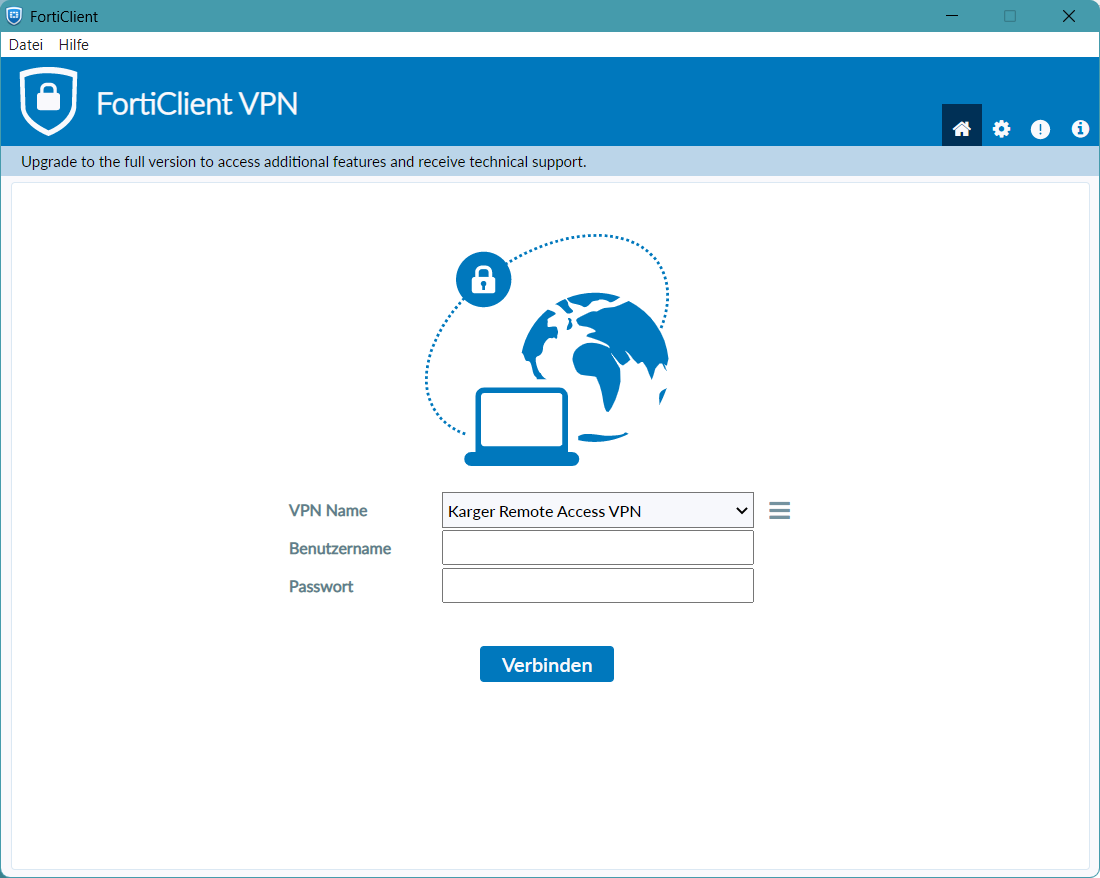
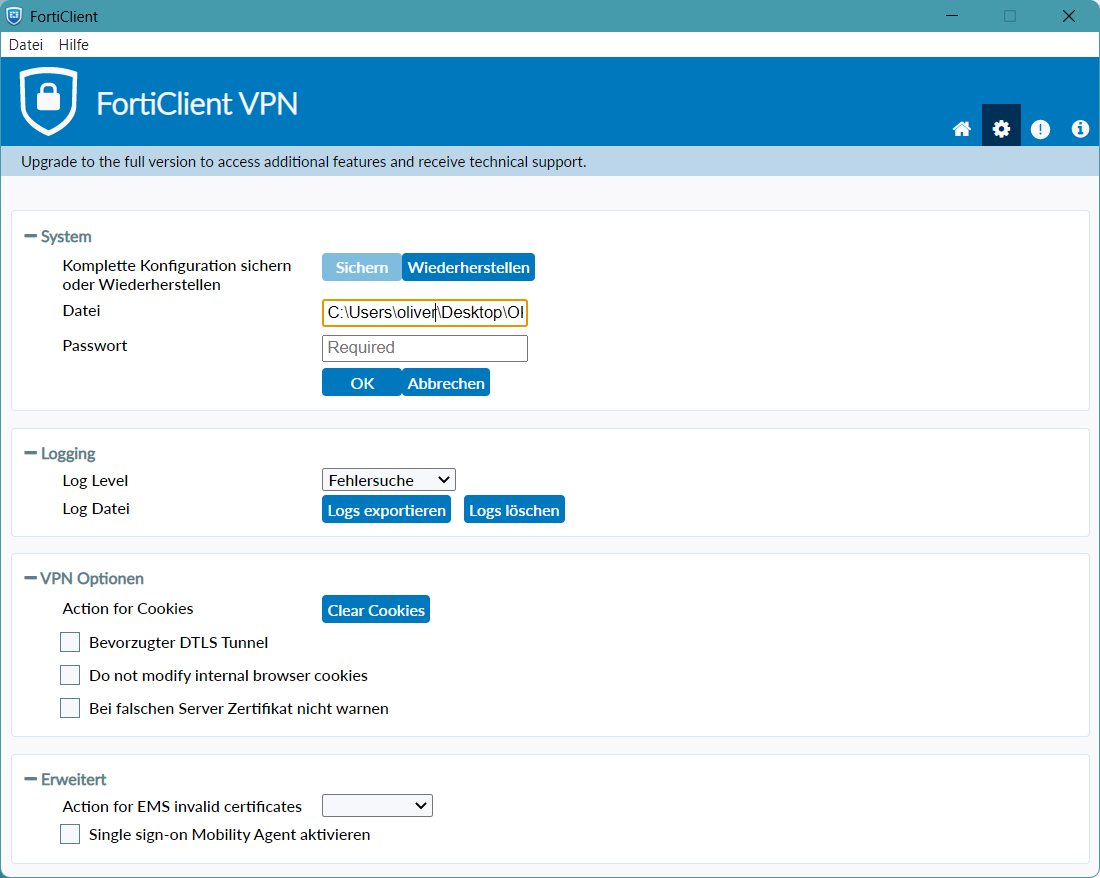
Launch “FortiClient” after installing
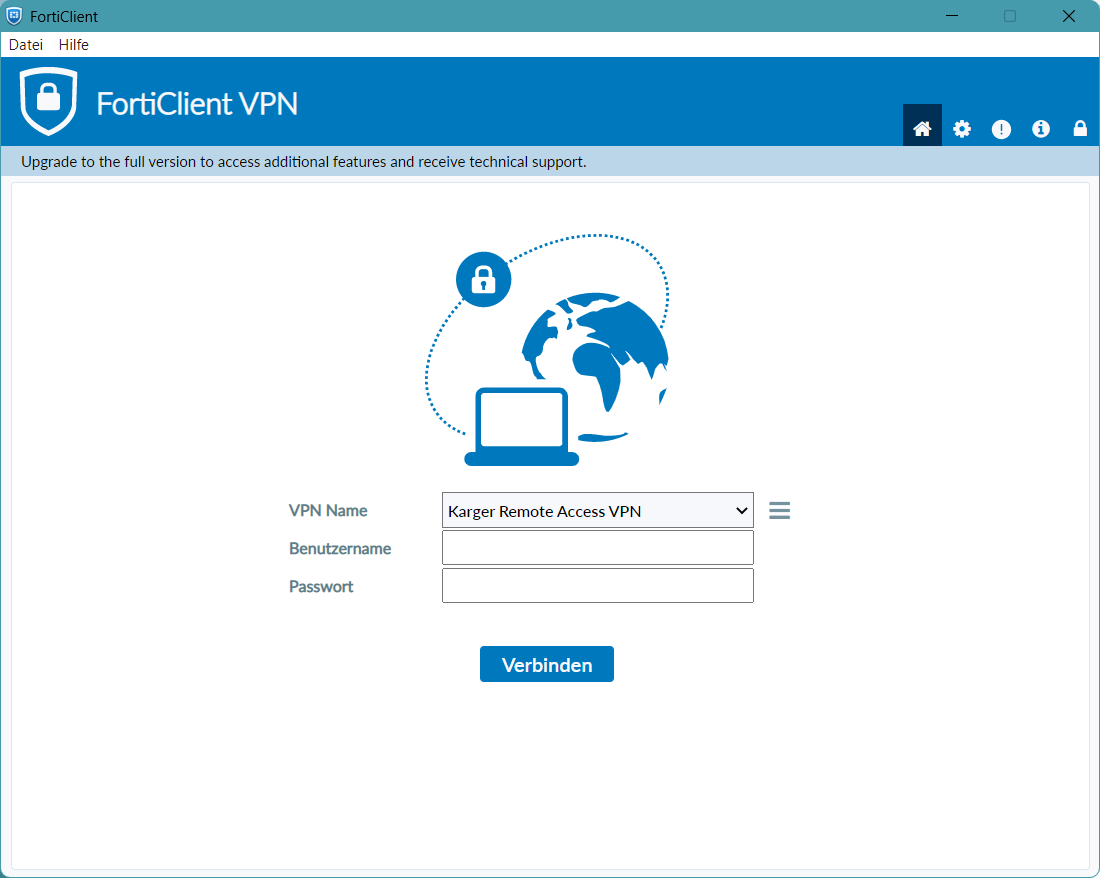
Click on the “Cog” Icon in the top right corner
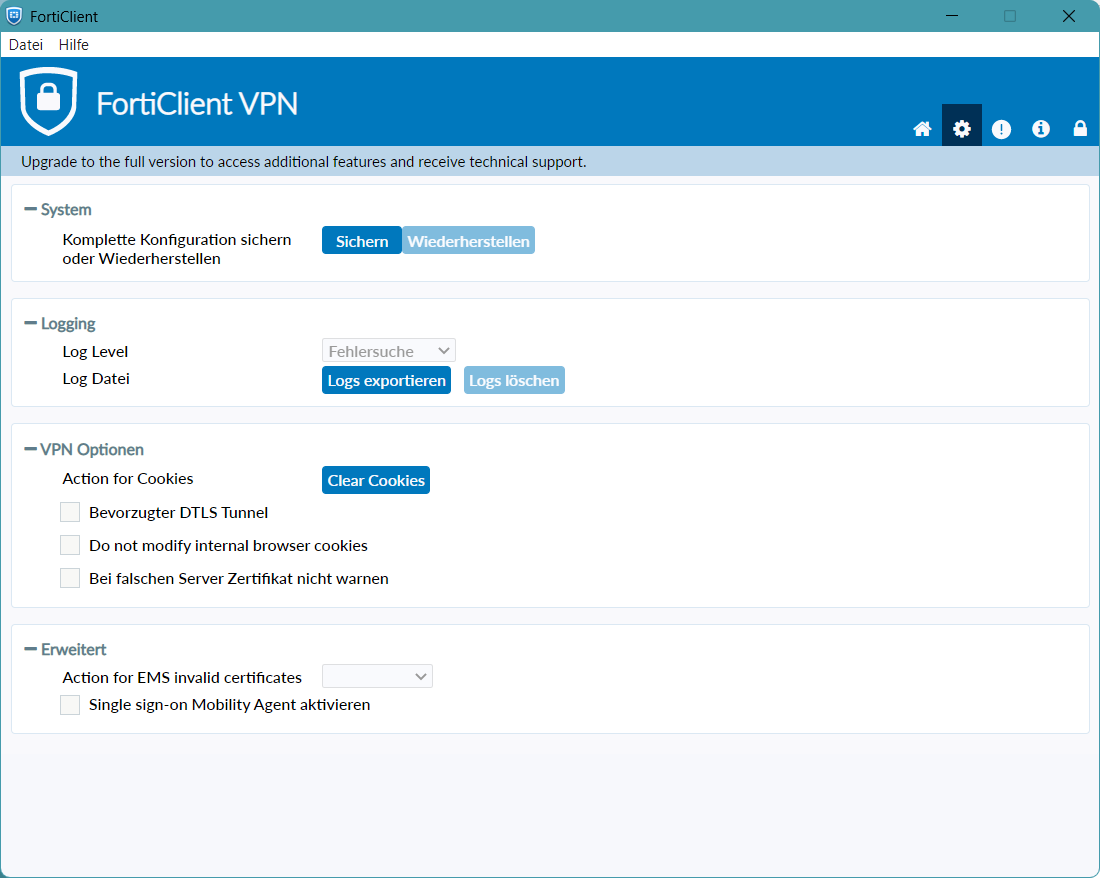
Click on the “Lock” icon in the top left corner to unlock the System Configuration Import ("Wiederherstellen" Button the the Screenshot)
Click “Wiederherstellen and select your Configuration File”
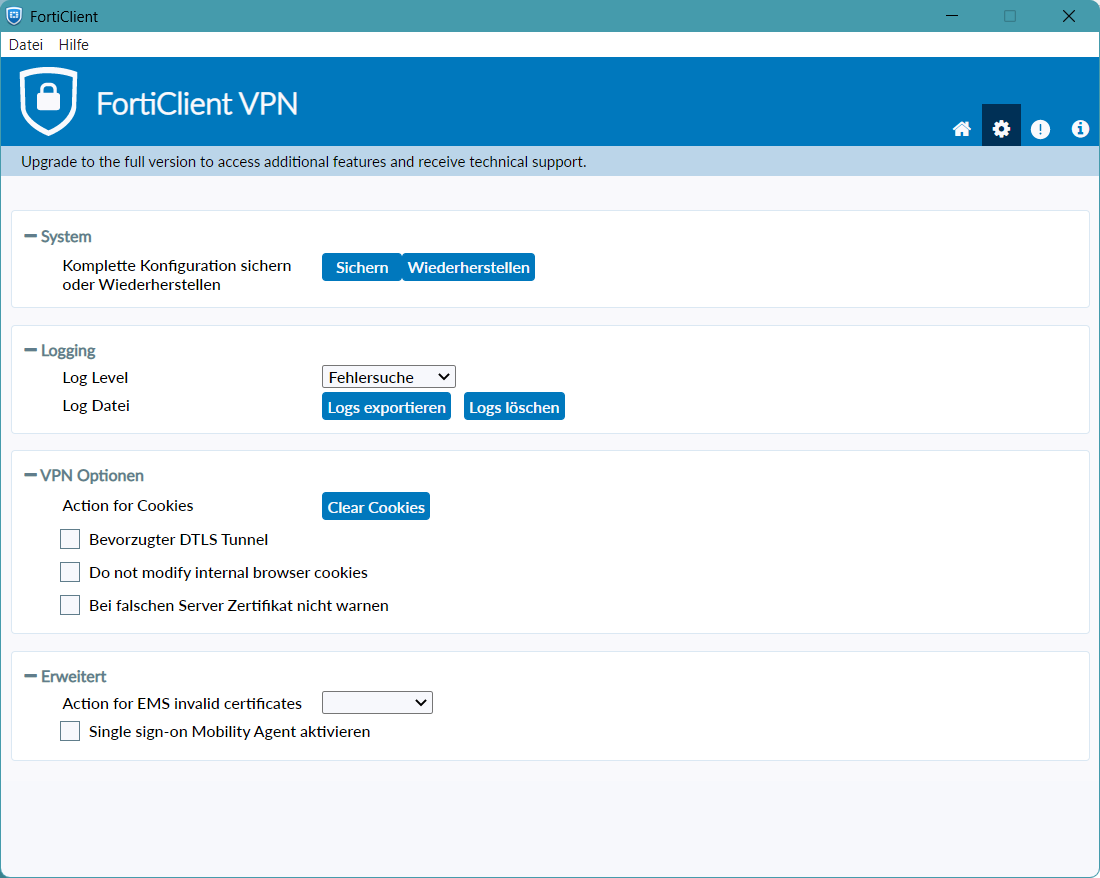
5. (Optional) If your Configuration File is encrypted, enter your Password provided to you by your Administrator
Click on the “Home” Icon in the top left, enter your Username and Password to connect