FortiGate
- Enable SNMP Monitoring
- Policy based IPsec VPN (IKEv1)
- Virtual Server Reverse Proxy
- SSL-VPN on custom Interface
- Setup of Public Captive Portal
- ASIC Offloading & VoIP Quality Issues
- IKEv2 VPN
- SSO with Keycloak
Enable SNMP Monitoring
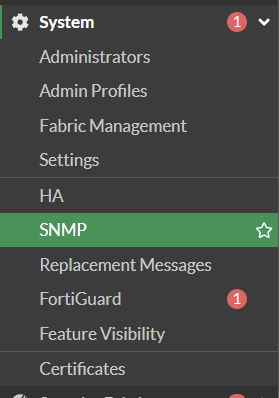
1. Go to System -> SNMP
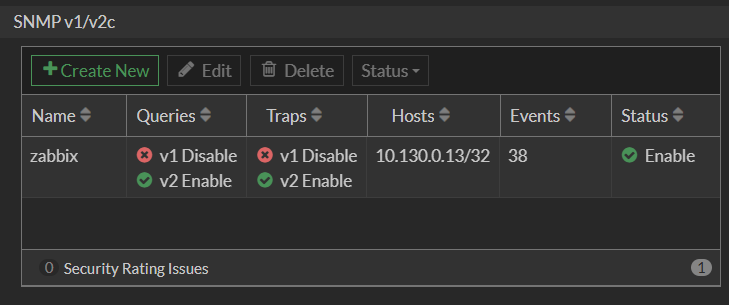
2. Go to SNMP v1/v2c and click Create New
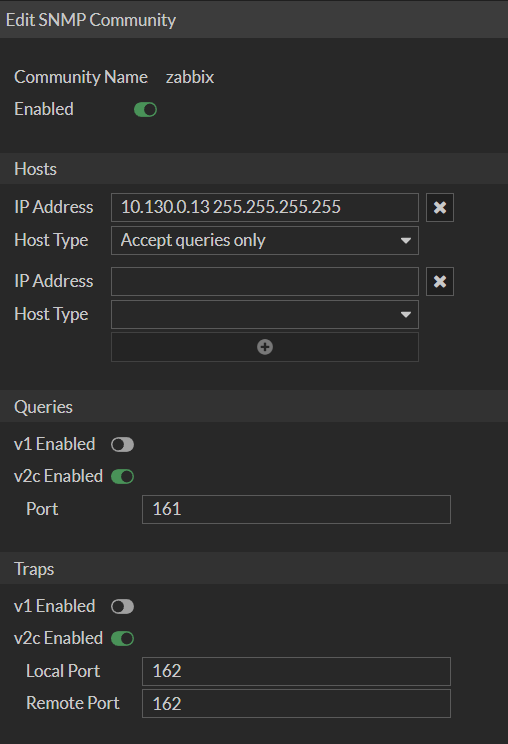
3. Set a Name, enter your Allowed Hosts and Ports
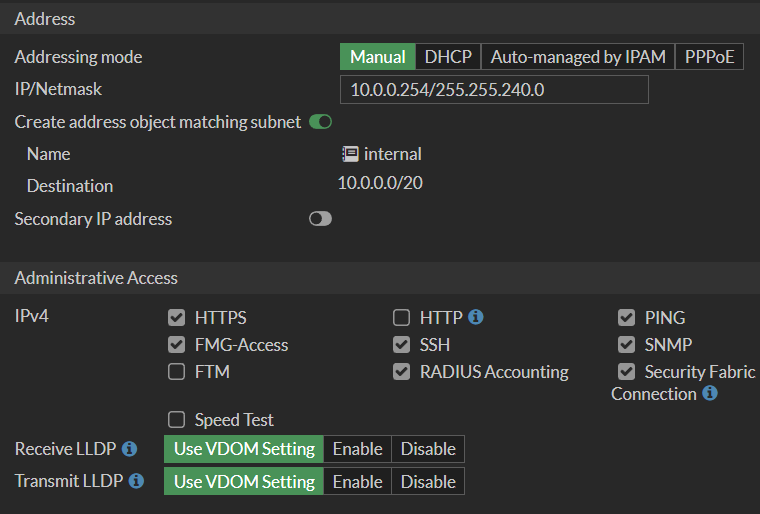
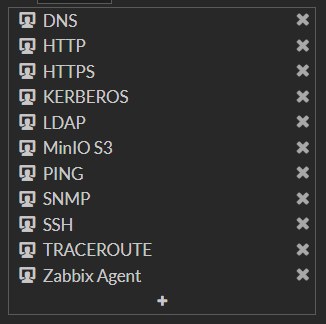
4. Allow SNMP on the respective Interface of the Firewall
Policy based IPsec VPN (IKEv1)
What will be done
- Setup a IKEv1 Remote Access VPN with PSK + XAuth Authentication
- Policy-based Split Tunneling
Prerequesits
- Static IP
- Port 500 (UDP) for IKE open
- Port 4500 (UDP) for NAT-T open
- ESP open
- User Group for XAuth
I'll be referring to this Tunnel as VPN-RA-Test. Give it whatever name you need!
1. Creating a VPN Tunnel
- Go to VPN - IPsec Tunnels
- Click Create New and select IPsec Tunnel
- Template Type: Custom
- Name: VPN-RA
1.1. Network Settings
-
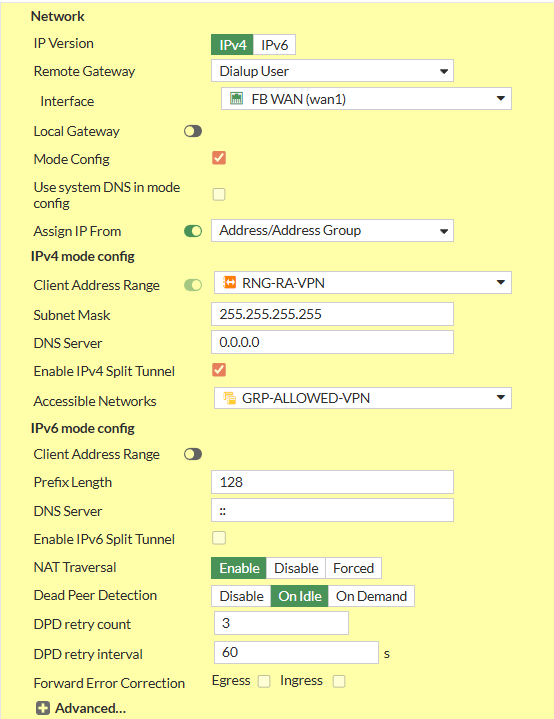
- Set IP Version to IPv4
- Set Remote Gateway to Dialup User
- Interface: Your WAN Interface
- Disable Local Gateway
- Enable Mode Config
- Set Client Address Range manually or Assign Range Address Object
- Set Subnet Mask
255.255.255.255to prevent Inter-Device Communication inside the Tunnel or specify explicitly - Set your preferred DNS Server.
- Enable Enable IPv4 Split Tunnel
- Select your Address Object representing the Networks that should be accessable
- Disable IPv6 Mode Config - Client Address Range
- Set NAT Traversal to Enable
- Set Dead Peer Detection to On Idle
1.2. Authentication
- Set Method to Pre-shared Key
- Write your PSK to the Pre-shared Key Input Field
- Set IKE - Version to 1
- Set IKE - Mode to Agressive
- Set Peer Options - Accept Types to Any Peer ID
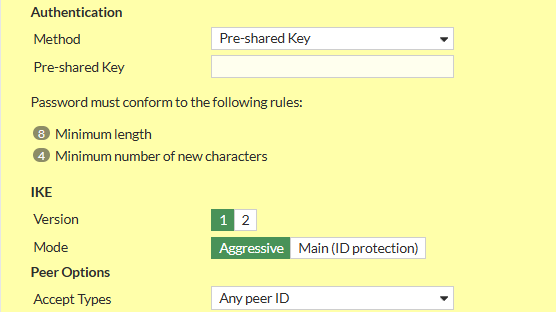
You can set a Peer ID here to differentiate different Tunnels that might share Settings and/or PSKs
1.3. Phase 1 Proposal
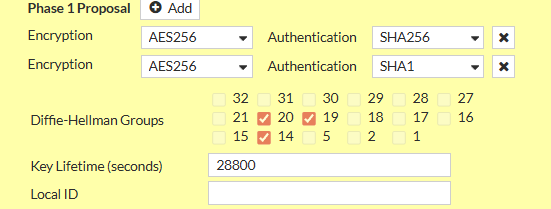
Remove all existing Phase 1 Proposals beforehand by clicking the X Button the right side
- Add the following Proposals
- Encryption: AES256, Authentication: SHA256
- Encryption: AES256, Authentication: SHA1
- Check Diffie-Hellmann Groups 14, 19, 20
- Set Key Lifetime (seconds) to 28800
1.4. XAuth
- Set Type to Auto Server
- Set User Group to Inherit from policy

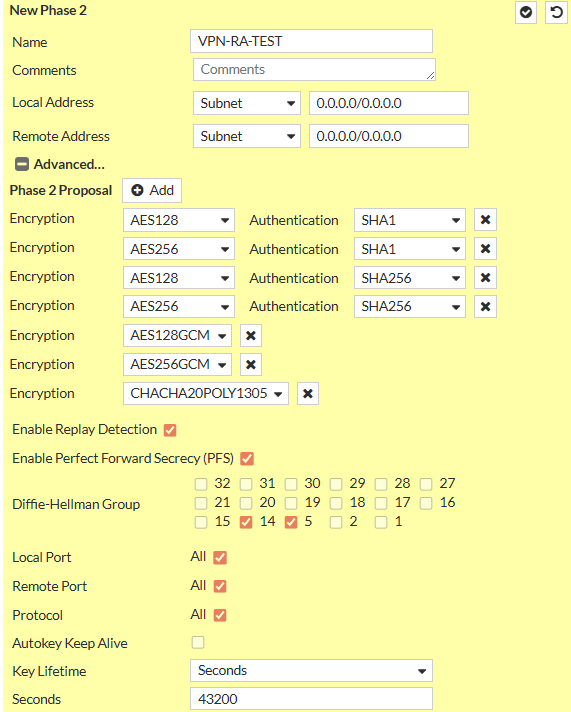
1.5. Phase 2 Selectors
There should only be one Phase 2 Selector pre-existing with the Name of the Tunnel you specified
1.5.1 Edit Default Phase 2 Selector
- Click on the Pen Icon at the Right Side of the Row to Edit
- Expand the Advanced Menu by clicking on Advanced
- Set Name to VPN-RA-P2
- Set Local Address to Type Subnet and Value
0.0.0.0/0 - Set Remote Address to Type Subnet and Value
0.0.0.0/0 - Delete all existing Phase 2 Proposals
- Add the following Phase 2 Proposals (same as with Phase 1)
- Encryption: AES256, Authentication: SHA256
- Encryption: AES256, Authentication: SHA1
- Enable Enable Replay Detection
- Enable Enable Perfect Forward Secrecy (PFS)
- Check Diffie-Hellmann Groups 14, 19, 20
- Enable Local Port
- Enable Remote Port
- Enable Protocol
- Set Key Lifetime to Seconds and set
3600
2. Create Policies
For a Policy-based IPsec VPN you need Policies that allow both the Address Range of the Clients and the Users to access the Networks you need.
Depending on the Networks you specified, you need Policies from WAN->LAN and maybe WAN->OtherLAN.
2.1 Example Policy
This is an Example Policy from WAN to LAN
I use Address Objects here that i also specified in the Tunnel Configuration.
Note: You cannot specifiy Subnet Address Objects in the Tunnel Configuration, only IP Ranges. But if the Subnet contains the IP Range, this works fine. Example: Range is 192.168.10.100 - 192.168.10.200 so a Subnet of 192.168.10.0/24 would work just fine
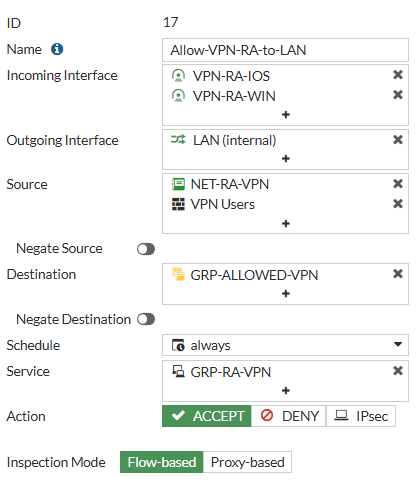
Here my Policies allows Traffic from the VPN Tunnel Interfaces (created when creating the Tunnel) to the LAN Interface. As here, Authentication is Policy-based, for the Source we also need the User/User Groups.
Destination is a Group i created that is the same i used for the Split Tunneling - Accessable Networks
You can also specify a Schedule or Service if you want to.
You need Policies in both Directions for them to work correctly!
Virtual Server Reverse Proxy
What will be done
- Using a FortiGate to act as a Reverse Proxy, forwarding
domain.tldtoip:port
Prerequesits
- Static IP
- Port 443 (TCP) for HTTPS open
In this Example, Forgejo will be used as Application
1. Creating a Virtual Server
- Go to Policy & Objects - Virtual Servers and Click Create New
- Set a Name
1.2 Network Configuration
- Set Type to HTTPS
- Set Interface to your WAN Interface
- Set Virtual server IP to your Public IP (or TN IP if behind a NAT Router)
- Set Virtual server port to
443 - Set Load balancing method to HTTP Host
- Set Persistence to HTTP Cookie
- Enable Preserve client IP
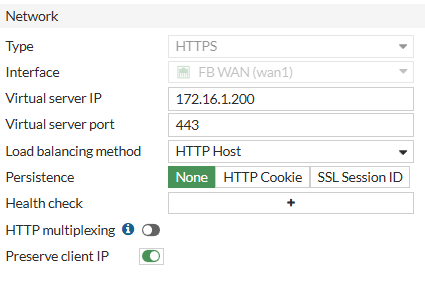
You can add Health Checks for this Virtual Server here
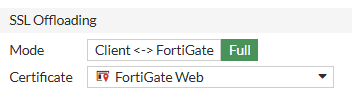
1.3 SSL Offloading
As the FortiGate will be acting as Reverse Proxy in this Situation, SSL Encryption needs to be done at the Firewall. Select/Upload your SSL Certificate here and Set Mode to Full
1.4 Real Servers
For each public Domain, create a Real Server here
Example: git.domain.tld
- Click Create New
- Set IPv4 Address to your internal Server IP Address
- Set Port to your internal Server Port
- Set Max connections to
0for unlimited Connections or set a fixed limit - Set HTTP host to your public Domain
- Set Mode to Active

2. Creating Firewall Policy
We need a Proxy-based Policy that allows WAN Access to the created Virtual Server
If you can't select your Virtual Server here, switch to Proxy-based Inspection Mode first.

3. Application Configuration
Your Application needs to be able to accept Traffic to Port 80 with the specific Public Domain. As the FortiGate will handle SSL Encryption, you need to make sure your Application accepts plain HTTP without HTTP-to-HTTPS-Redirection
SSL-VPN on custom Interface
This explains how to setup the SSL-VPN on a FortiGate (E-Series) on a Custom Interface for better Controls.
This is done because per default, SSL-VPN Listens on the WAN Interface directly, therefor can not be controlled by any Policy.
Create Loopback Interface
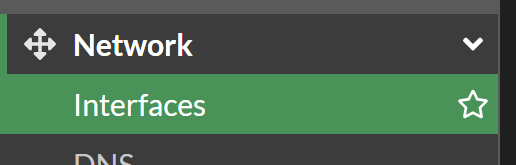
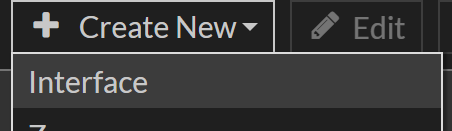
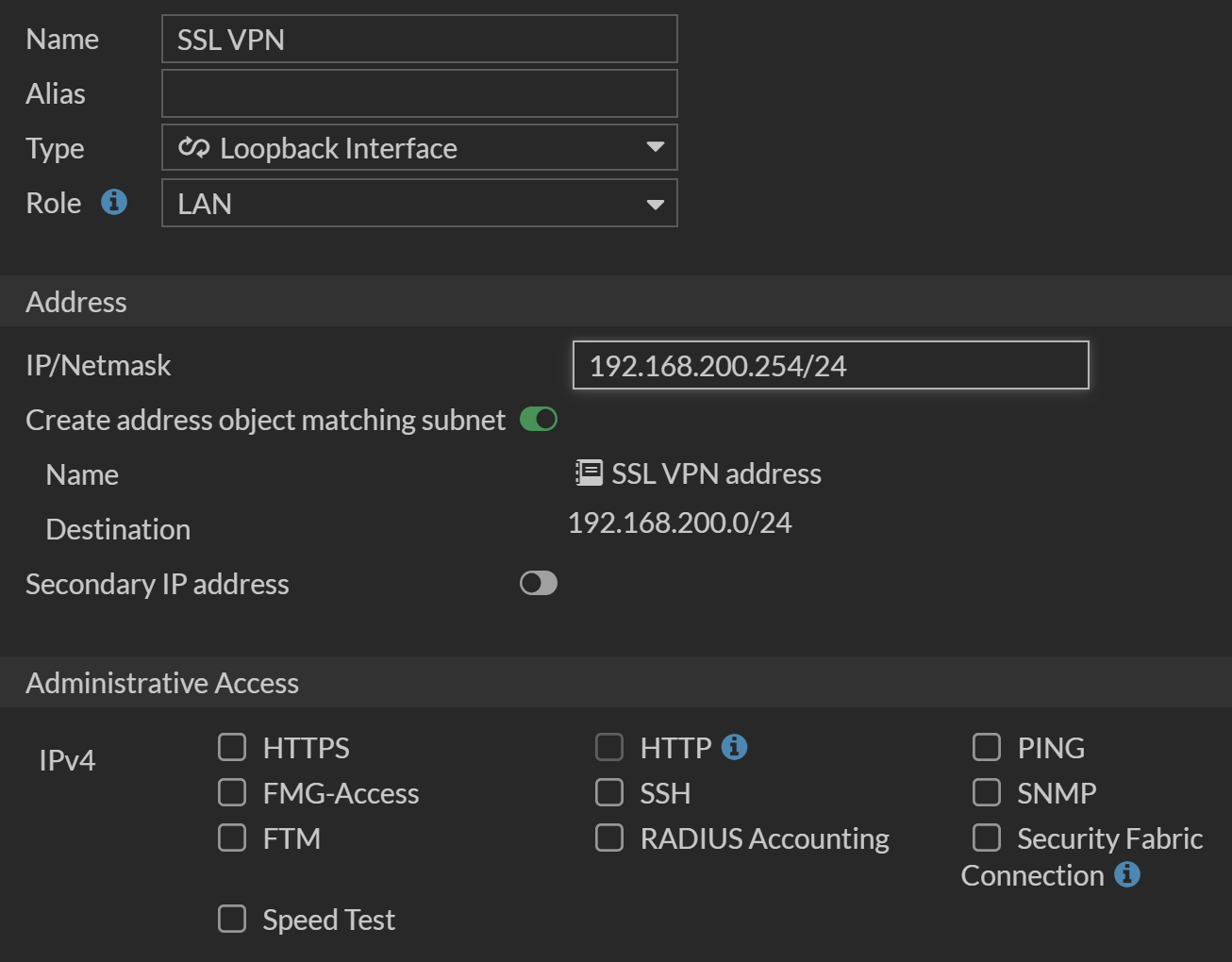
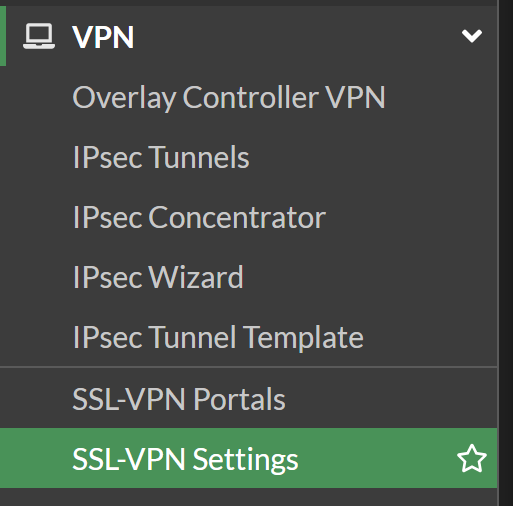
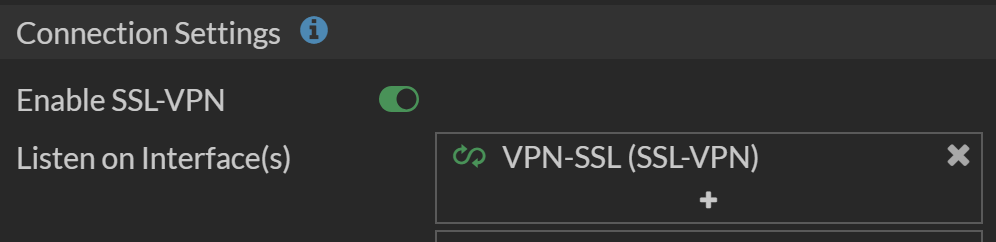
Bind SSL-VPN to new Loopback Interface
Redirect SSL-VPN Traffic
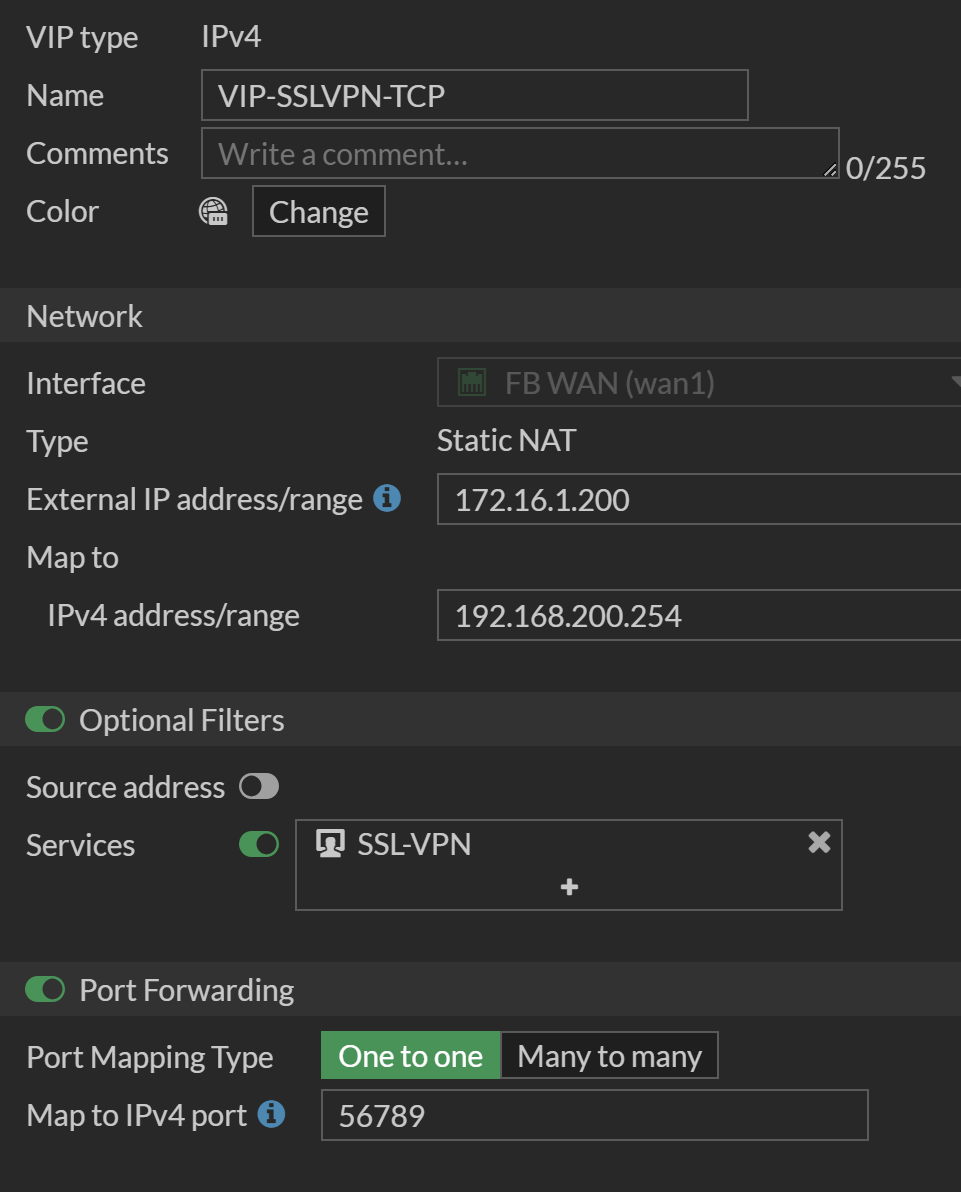
We now need to make sure the SSL-VPN Traffic actually reaches the new SSL-VPN Interface. We will use a Virtual IP with Port Forwarding for that.

Allow Traffic to new Interface

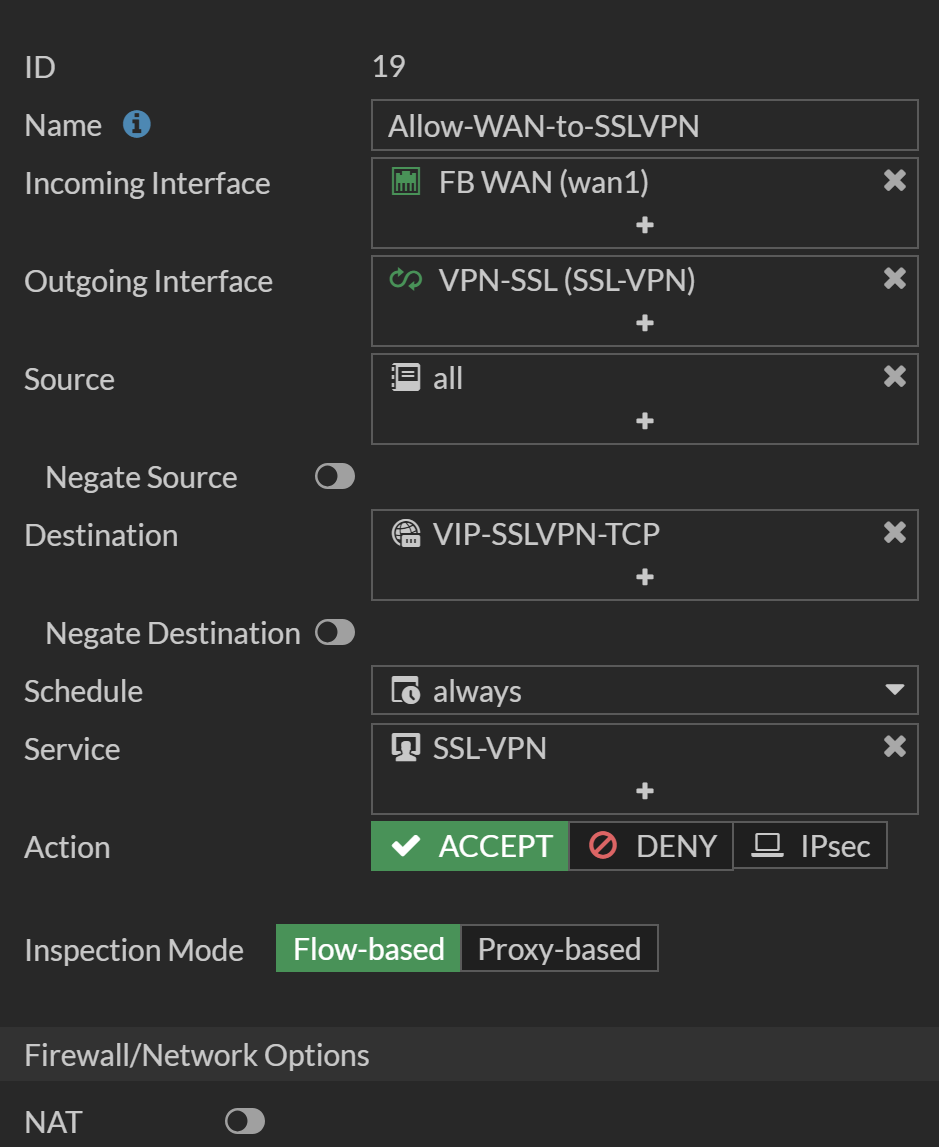
Setup of Public Captive Portal
1. Portal basic Settings
Configure Certificate and enable HTTPS
config user setting
    set auth-cert "certificate"
    set auth-secure-http enable
end
Set public FQDN / DNS Name
config firewall auth-portal
    set portal-addr "portal.company.com"
end
2. Configure public Port
It is recommended to explicitly set a public Port
config system global
    set auth-https-port 45443
end
3. Update Policies
Simply add your Users/Groups to the Policies.
ASIC Offloading & VoIP Quality Issues
Problem Description
Real-time VoIP applications (Discord, Teams, Zoom) exhibit high latency (>200ms) and packet loss, forcing a fallback to low-quality TCP relays. Audio input appears "damped," robotic, or near-silent to other participants, despite sounding perfect in local monitoring or DAW software.
Fix
-
Disable Hardware Offloading: Prevents the NPU from dropping fragmented UDP return traffic.
-
Enable Fixed Port: Forces the firewall to use the same internal source port for the external connection, allowing the upstream router to maintain the session.
config firewall policy
    edit <POLICY_ID>
        # Force traffic to main CPU (Software Processing)
        set auto-asic-offload disable
        set np-acceleration disable

        # Prevent Port Translation
        set nat enable
        set fixedport enable

        # Disable Deep Inspection for Real-Time Traffic
        set utm-status disable
        set ssl-ssh-profile "no-inspection"
    next
end
After applying, clear active sessions to force a fresh handshake
diagnose sys session filter dport 50000 65535
diagnose sys session clear
IKEv2 VPN
General Use IKEv2 VPN for FortiClient
FortiGate Configuration
Phase 1
edit "VPN-RA-FC"
    set type dynamic
    set interface "wan1"
    set ike-version 2
    set peertype any
    set net-device disable
    set mode-cfg enable
    set ipv4-dns-server1 10.0.0.254
    set internal-domain-list "<removed>"
    set proposal aes256gcm-prfsha384 aes256gcm-prfsha256 aes256-sha256
    set localid "<removed>"
    set dpd on-idle
    set dhgrp 21 19 14
    set eap enable
    set eap-identity send-request
    set authusrgrp "VPN Users"
    set assign-ip-from name
    set ipv4-split-include "GRP-VPN-ACCESS"
    set ipv4-name "RNG-RA-VPN-Clients"
    set psksecret <removed>
    set dpd-retryinterval 60
nextinternal-domain-listis a List of DNS Domains that should be resolveable by the connected Device (internal Domains only)localidis the public DNS Domain of the Firewall (required)psksecretis the Pre-Shared-Key
Phase 2
edit "VPN-RA-FC-P2-DEFAULT"
    set phase1name "VPN-RA-FC"
    set proposal aes256gcm aes256-sha256
    set dhgrp 21 19 14
    set keepalive enable
    set keylifeseconds 3600
next
Policies
config firewall policy
    edit 18
        set name "Allow-VPN-RA-to-LAN"
        set uuid b88f102a-dff6-51f0-6157-49a1d9450327
        set srcintf "VPN-RA-APPLE" "VPN-RA-WINDOWS" "VPN-RA-FC"
        set dstintf "VLAN-LAN-100" "SSID-WLAN-TUN" "SSID-IOT-TUN" "VLAN-DMZ-200"
        set action accept
        set srcaddr "RNG-RA-VPN-Clients"
        set dstaddr "GRP-VPN-ACCESS"
        set schedule "always"
        set service "ALL"
    next
    edit 20
        set name "Allow-VPN-RA-to-WAN"
        set uuid ee369aec-dff9-51f0-c276-83956b56cd9c
        set srcintf "VPN-RA-APPLE" "VPN-RA-FC" "VPN-RA-WINDOWS"
        set dstintf "wan1"
        set action accept
        set srcaddr "RNG-RA-VPN-Clients"
        set dstaddr "all"
        set schedule "always"
        set service "ALL"
        set nat enable
    next
end
Client Configuration
iOS FortiClient App
| Secure Protocol | IKEv2 VPN |
| Name | <Name> |
| Server Address | Public DNS Domain (same as localid in Tunnel Config) |
| Authentication Method | Pre-shared Key |
| Pre-shared Key Secret | PSK |
| EAP-AUTH | Enabled |
| Local ID | empty |
| Remote-ID | Public DNS Domain (same as localid in Tunnel Config) |
| Phase 1 Encryption | AES256 |
| Phase 1 Authentication | SHA256 |
| Phase 1 DH GRoup | 14 |
| Phase 1 Key Lifetime | 86400 |
| Phase 1 Encryption | AES256 |
| Phase 1 Authentication | SHA256 |
| Phase 1 DH GRoup | 14 |
| Phase 1 Key Lifetime | 43200 |
| DPD | enabled |
| PFS | enabled |
| Username | Client Username (User in FortiGate) |
SSO with Keycloak
Requirements
- FortiGate with at least FortiOS 7.X
- Keycloak (26.X ideally)
This has been tested with Keycloak 26.X and FortiOS 7.6.6
Realm names in Keycloak are case-sensitive. Ensure all URLs referencing the realm name use the exact same casing (e.g. MyRealm not myrealm).
You need a separate Keycloak client for each FortiGate SSO use case. For example: one client for Admin SSO and one for User SSO (firewall policy authentication). This allows separate access restrictions per use case.
Keycloak Setup
The following steps apply to both the Admin SSO client and the User SSO client. Differences between the two are noted where applicable.
Step 1: Create the Keycloak Client (basic)
- Log into Keycloak and go to Clients
- Create a new Client of Type SAML and set the Client ID:
- Admin SSO:
http://<your-fortigate-fqdn>/metadata/ - User SSO:
http://<your-fortigate-fqdn>/remote/saml/metadata/
Note the trailing slash — it must be present. The Client ID must be a byte-for-byte match of the Issuer value sent by FortiGate in its SAMLRequest.
- Admin SSO:
- Finish the Create Client wizard with default settings for now
Step 2: Client Settings (advanced)
- General Settings
- Set a display name for Name
- Optionally set a Logo URI to display a logo on the account console. For FortiGate clients the official Fortinet logo is available at:
https://upload.wikimedia.org/wikipedia/commons/6/62/Fortinet_logo.svg
The Logo URI is only shown in the Keycloak account console, not on the login page itself. To show a logo on the login page, a custom theme is required.
- Access settings
- Set your FortiGate address as Root URL and Home URL
- Set Valid Redirect URIs:
- Admin SSO:
https://<your-fortigate-fqdn>/saml/?acs - User SSO:
https://<your-fortigate-fqdn>/remote/saml/?acs
- Admin SSO:
- Set Master SAML Processing URL to the same value as Valid Redirect URIs above
- SAML capabilities
- Set Name ID Format to username
- Enable Force POST Binding
- Signature and Encryption
- Enable Sign documents
- Enable Sign assertions
- Keys tab
- Set Client Signature Required to Off — FortiGate does not sign AuthnRequests
- Logout settings (Settings tab)
- Enable Front channel logout
- Set Logout service POST binding URL:
- Admin SSO:
https://<your-fortigate-fqdn>/saml/?sls - User SSO:
https://<your-fortigate-fqdn>/remote/saml/?sls
- Admin SSO:
- Set Logout service Redirect binding URL to the same value as above
- Logout settings (Advanced tab)
- Set Backchannel logout URL:
- Admin SSO:
https://<your-fortigate-fqdn>/saml/?sls - User SSO:
https://<your-fortigate-fqdn>/remote/saml/?sls
- Admin SSO:
- Enable Backchannel logout session required
- Set Backchannel logout URL:
Step 3: Add Username Attribute Mapper
Without a username mapper, FortiGate will reject the SAML assertion as it contains no username attribute.
- Go to Clients → your client → Client scopes → (client)-dedicated → Add mapper → By configuration
- Select User Property and configure:
- Name:
username - Property:
username - SAML Attribute Name:
username - SAML Attribute NameFormat:
Basic
- Name:
- Save
Access Restriction (Optional)
By default, any user in Keycloak can authenticate through the client. To restrict access to a specific group, follow the steps below. Repeat this process for each client with its own role and group.
This works by creating a realm role, assigning it to a group, and then creating a custom authentication flow that denies access to users who do not have that role.
Step 1: Create a Realm Role
- Go to Realm roles → Create role
- Set a name for the role (e.g.
Firewall AdminsorFirewall Users) - Save
Step 2: Assign the Role to a Group
- Go to Groups → your desired group → Role mapping
- Click Assign role
- Select the role created in Step 1 and assign it
All members of the group will automatically inherit the role. If you use AD/LDAP federation, make sure group sync is configured so group memberships are reflected in Keycloak.
Step 3: Create a Custom Authentication Flow
- Go to Authentication → Flows
- Click on Browser → Action → Duplicate
- Give it a descriptive name (e.g.
Browser - Firewall Admins) and confirm - Open the duplicated flow
- Click Add sub-flow at the top level:
- Name:
Role Check - Requirement:
Conditional
- Name:
- Inside the Role Check sub-flow, click Add condition:
- Select Condition - User Role
- Requirement:
Condition - Click the settings (pencil) icon and set:
- Role: select the role created in Step 1
- Negate:
On
- Inside the Role Check sub-flow, click Add step:
- Select Deny Access
- Requirement:
Required
The Negate toggle is critical. With Negate On, the condition matches users who do not have the role, causing them to be denied. Without Negate, users with the role would be denied instead.
Step 4: Bind the Flow to the Client
- Go to Clients → your client → Advanced tab
- Scroll to Authentication flow overrides
- Set Browser flow to your newly created flow
- Save
FortiGate Setup
Preparation — Import Keycloak Certificate
Make sure to download the certificate from your specific realm's metadata endpoint, not the master realm. Each realm has its own signing key.
- Open
https://<your-keycloak-uri>/realms/<realm-name>/protocol/saml/descriptorin your browser - Find the
<ds:X509Certificate>value and copy it - Paste the content into a text file, wrapping it as follows:
-----BEGIN CERTIFICATE----- <paste certificate content here> -----END CERTIFICATE----- - Save the file with a
.crtextension - Log into FortiGate and go to System → Certificates
- Click Create/Import → Remote Certificate
- Upload the file and note the assigned name (usually
REMOTE_Cert_X)
Admin SSO Configuration
- Log into FortiGate and go to Security Fabric → Fabric Connectors
- Right-click on Security Fabric Setup → Edit → Single Sign-On Settings:
- Set Mode to Service Provider (SP)
- Click Use current browser address to automatically configure the SP Address
- Configure the Default admin profile to your desired settings
- IdP Settings:
- Set IdP type to Custom
- Set IdP certificate to the imported certificate name (e.g.
REMOTE_Cert_X) - Set IdP entity ID to
https://<your-keycloak-uri>/realms/<realm-name> - Set IdP single sign-on URL to
https://<your-keycloak-uri>/realms/<realm-name>/protocol/saml - Set IdP single logout URL to
https://<your-keycloak-uri>/realms/<realm-name>/protocol/saml
User SSO Configuration (Firewall Policy Authentication)
- Log into FortiGate and go to User & Authentication → Single Sign-On → Create New
- Configure the following:
- Set Type to Custom
- Set Address to your FortiGate FQDN or IP — the SP Entity ID, ACS URL, and SLO URL will auto-populate
- Set Attribute used to identify users to
username - Set Attribute used to identify groups to
group - IdP Settings:
- Set IdP type to Custom
- Set Certificate to the imported certificate name (e.g.
REMOTE_Cert_X) - Set IdP entity ID to
https://<your-keycloak-uri>/realms/<realm-name> - Set IdP single sign-on URL to
https://<your-keycloak-uri>/realms/<realm-name>/protocol/saml - Set IdP single logout URL to
https://<your-keycloak-uri>/realms/<realm-name>/protocol/saml
- Save the SSO configuration
- Go to User & Authentication → User Definition → Create New:
- Set User Type to SAML
- Set Username to a name for this SAML user (e.g.
keycloak-users) - Set SAML SSO Server to the SSO configuration created above
- Go to User & Authentication → User Groups → Create New:
- Add the SAML user definition as a Member
- Apply the user group to a Firewall Policy under Policy & Objects → Firewall Policy → Source
Users matching a firewall policy with this group will be prompted to authenticate via Keycloak SAML before traffic is allowed through.