In this Example, Forgejo will be used as Application
### 1. Creating a Virtual Server 1. Go to Policy & Objects - Virtual Servers and Click Create New 2. Set a Name #### 1.2 Network Configuration 1. Set *Type* to **HTTPS** 2. Set *Interface* to your WAN Interface 3. Set *Virtual server IP* to your Public IP (or TN IP if behind a NAT Router) 4. Set *Virtual server port* to `443` 5. Set *Load balancing method* to **HTTP Host** 6. Set *Persistence* to **HTTP Cookie** 7. Enable *Preserve client IP* [](https://kb.oliver-karger.de/uploads/images/gallery/2025-09/gSgimage.png)You can add Health Checks for this Virtual Server here
#### 1.3 SSL Offloading As the FortiGate will be acting as Reverse Proxy in this Situation, SSL Encryption needs to be done at the Firewall. Select/Upload your SSL Certificate here and Set *Mode* to **Full** [](https://kb.oliver-karger.de/uploads/images/gallery/2025-09/qHZimage.png) #### 1.4 Real Servers For each public Domain, create a Real Server here Example: git.domain.tld 1. Click *Create New* 2. Set *IPv4 Address* to your internal Server IP Address 3. Set *Port* to your internal Server Port 4. Set *Max connections* to `0` for unlimited Connections or set a fixed limit 5. Set *HTTP host* to your public Domain 6. Set *Mode* to **Active** [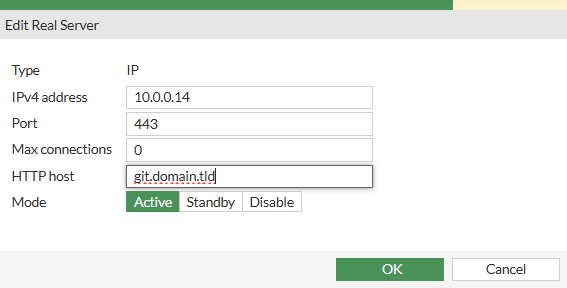](https://kb.oliver-karger.de/uploads/images/gallery/2025-09/mNFimage.png) ### 2. Creating Firewall Policy We need a Proxy-based Policy that allows WAN Access to the created Virtual ServerIf you can't select your Virtual Server here, switch to *Proxy-based* Inspection Mode first.
[](https://kb.oliver-karger.de/uploads/images/gallery/2025-09/Li8image.png) ### 3. Application Configuration Your Application needs to be able to accept Traffic to Port 80 with the specific Public Domain. As the FortiGate will handle SSL Encryption, you need to make sure your Application accepts plain HTTP without HTTP-to-HTTPS-Redirection