# Microsoft Office

# Enable Macros for Network Files

### Issue

Office Macros might be disabled when opening Files from Network Shares. These can't be enabled using the Regular Workflow

### Solution

1. Start `inetcpl.cpl` from Windows Search, Windows Run or CommandPrompt/PowerShell
2. Go to tab *Security*
3. In the Horizontal Scroll Menu, select *Local Intranet*
4. Click on Button *Sites*
5. Click on *Advanced*
6. Type your Server IP/DNS Name/Hostname into the Box and click *Add*
7. Close all Dialogues.

After this, you can now re-enable Macros even with Files from Network Shares.

[![image.png](https://kb.oliver-karger.de/uploads/images/gallery/2025-06/scaled-1680-/image.png)](https://kb.oliver-karger.de/uploads/images/gallery/2025-06/image.png)

[![image.png](https://kb.oliver-karger.de/uploads/images/gallery/2025-06/scaled-1680-/4Ruimage.png)](https://kb.oliver-karger.de/uploads/images/gallery/2025-06/4Ruimage.png)

[![image.png](https://kb.oliver-karger.de/uploads/images/gallery/2025-06/scaled-1680-/TB7image.png)](https://kb.oliver-karger.de/uploads/images/gallery/2025-06/TB7image.png)

# Outlook

# Profile Reset

<p class="callout warning">This will remove all local Outlook Configuration (including Mailboxes!)</p>

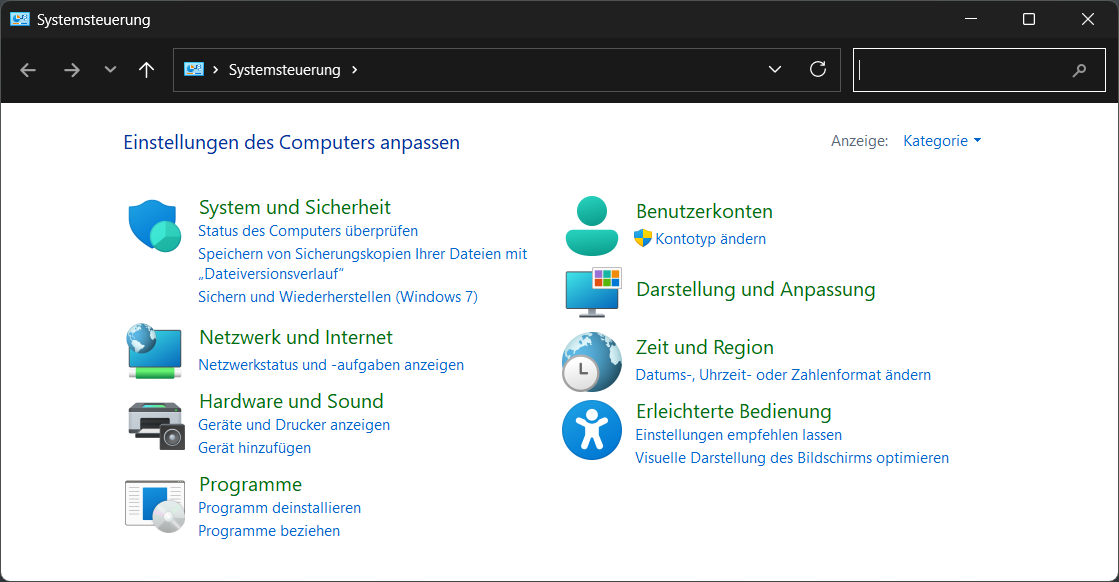
1\. Open Control Panel (Windows-Key + R =&gt; `control`)

[![image.png](https://kb.oliver-karger.de/uploads/images/gallery/2025-06/scaled-1680-/gxRimage.png)](https://kb.oliver-karger.de/uploads/images/gallery/2025-06/gxRimage.png)

2\. Select *User Accounts* / *Benutzerkonten*

[![image.png](https://kb.oliver-karger.de/uploads/images/gallery/2025-06/scaled-1680-/u7timage.png)](https://kb.oliver-karger.de/uploads/images/gallery/2025-06/u7timage.png)
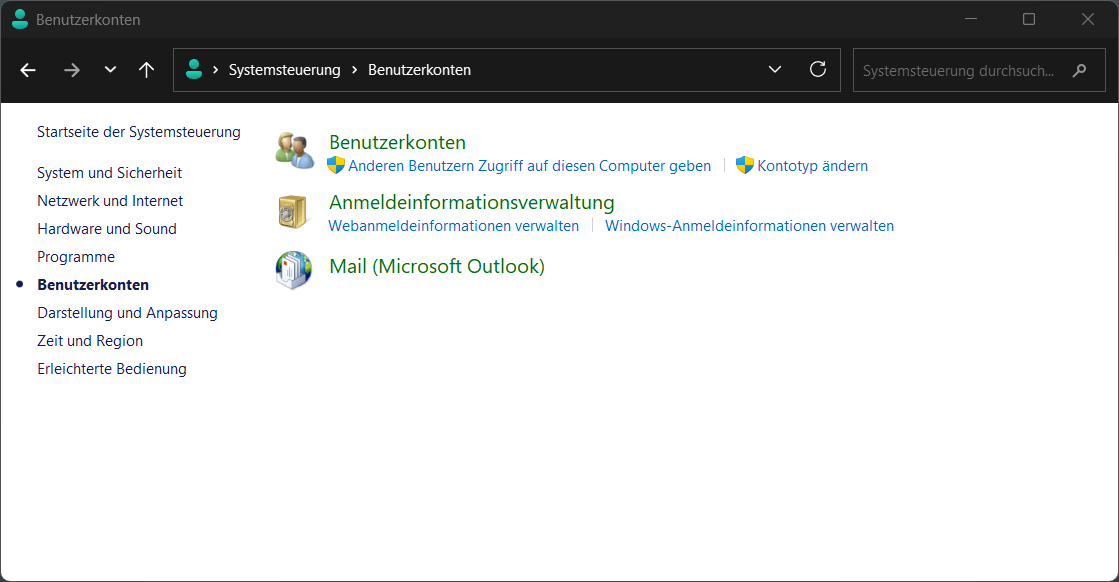
3\. Select *Mail (Microsoft Outlook)*

[![image.png](https://kb.oliver-karger.de/uploads/images/gallery/2025-06/scaled-1680-/8jWimage.png)](https://kb.oliver-karger.de/uploads/images/gallery/2025-06/8jWimage.png)
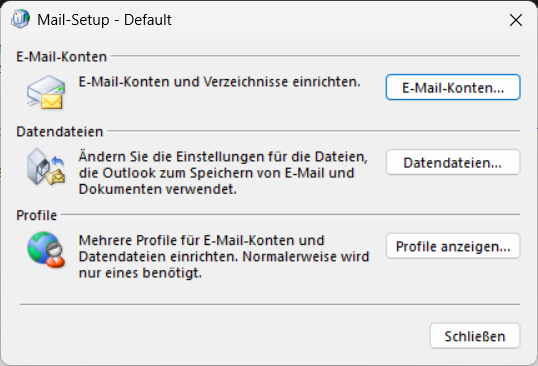
4\. At *Profile* select *Show Profiles* / *Profile anzeigen...*

[![image.png](https://kb.oliver-karger.de/uploads/images/gallery/2025-06/scaled-1680-/fmdimage.png)](https://kb.oliver-karger.de/uploads/images/gallery/2025-06/fmdimage.png)
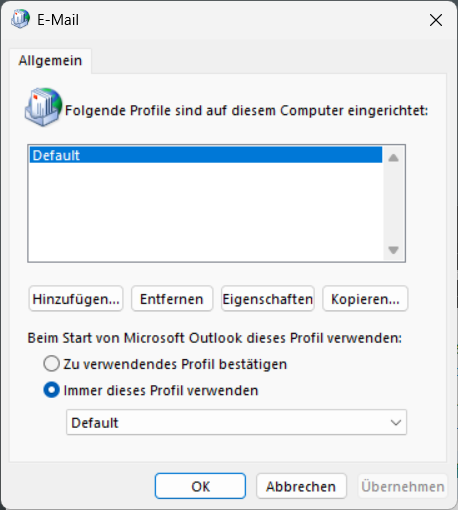
5\. Select all necessary Profiles and click *Entfernen* / *Remove*

After you do this, the next time you start Outlook you'll need to re-configure your Mail Accounts

# Word

# Teams

# Performance Optimizations

### AV Exclusions

<p class="callout info">Universal</p>

<table border="1" id="bkmrk-path-wildcard-descri" style="border-collapse: collapse; width: 100%; height: 245.3px;"><colgroup><col style="width: 33.3333%;"></col><col style="width: 33.3333%;"></col><col style="width: 33.3333%;"></col></colgroup><tbody><tr style="height: 29.6px;"><td style="height: 29.6px;">Path</td><td style="height: 29.6px;">Wildcard</td><td style="height: 29.6px;">Description</td></tr><tr style="height: 69.85px;"><td style="height: 69.85px;">`%PROGRAMFILES%\WindowsApps\MSTeams*\ms-teams.exe`

</td><td style="height: 69.85px;">Teams Version</td><td style="height: 69.85px;">Main Teams Client</td></tr><tr style="height: 86.65px;"><td style="height: 86.65px;">`%PROGRAMFILES%\WindowsApps\MSTeams*\msteams_autostarter.exe`

</td><td style="height: 86.65px;">Teams Version</td><td style="height: 86.65px;">Teams Autostart for User Logon</td></tr><tr style="height: 29.6px;"><td style="height: 29.6px;">`%PROGRAMFILES%\WindowsApps\MSTeams*\ms-teamsupdate.exe`

</td><td style="height: 29.6px;">Teams Version</td><td style="height: 29.6px;">Teams Updater</td></tr><tr style="height: 29.6px;"><td style="height: 29.6px;">`%PROGRAMFILES%\Microsoft\EdgeWebView\Application\*\msedgewebview2.exe`

</td><td style="height: 29.6px;">EdgeWebView Version</td><td style="height: 29.6px;">WebView (Teams Renderer)</td></tr></tbody></table>

<sup>**It is recommended to exclude them both as File and Process**</sup>

### Disable GPU Rendering

<p class="callout warning">Depends on System. Might reduce Performance!</p>

Edit File: `%APPDATA%\Microsoft\Teams\desktop-config.json`

Search for `disableGPU` and set to `true`

### Force GPU Rendering

<p class="callout warning">Depends on System. Might reduce Performance!</p>

<p class="callout info">Windows 11</p>

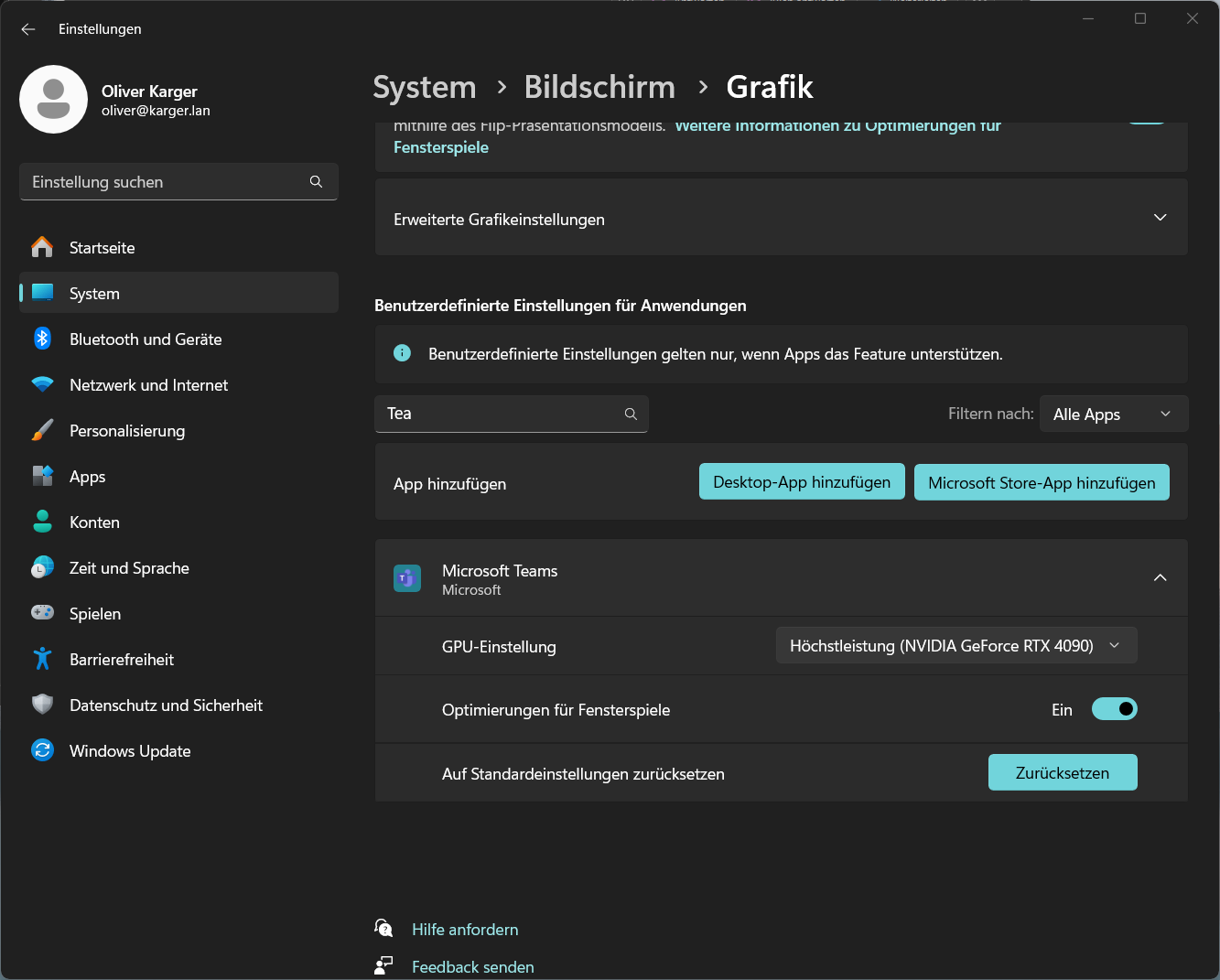
1. Open *Settings* (Windows-Key + i)
2. Go to *System* - *Display* - *Graphics*
    1. Either search for Teams, or click *Add MIcrosoft Store App* and select *Microsoft Teams*
3. Select GPU Setting "Max Performance (&lt;Your-GPU&gt;)

[![image.png](https://kb.oliver-karger.de/uploads/images/gallery/2025-07/scaled-1680-/image.png)](https://kb.oliver-karger.de/uploads/images/gallery/2025-07/image.png)

### Enable HMSS

*High Motion Screen Sharing* increases the Framerate of the Teams Screen Sharing System and the Application to reduce the Lag introduced by itself.

Press: **CLTR+ALT+SHIFT+T**

<p class="callout info">This can only be done while in a Meeting.</p>

<p class="callout warning">This Acts as a Toggle. Once to activate, another to deactivate</p>

### ANC / HFA

If Active Noise Cancellation and/or High Fidelity Audio is enabled, this can significantly reduce Performance of Microsoft Teams.

One specific Case, when using a ANC-capable Headset and having ANC enabled for both the Headset itself and Teams, this can lead to a race-condition between the two Systems that will impact performance while in Meetings.

It is recommended, to only use one ANC System and disable HFA if not necessary

### Firewall

<p class="callout info">Done on a FortiGate 60E</p>

Define a new Service for Microsoft Teams with Audio/Video Ports

[![image.png](https://kb.oliver-karger.de/uploads/images/gallery/2025-07/scaled-1680-/mu6image.png)](https://kb.oliver-karger.de/uploads/images/gallery/2025-07/mu6image.png)

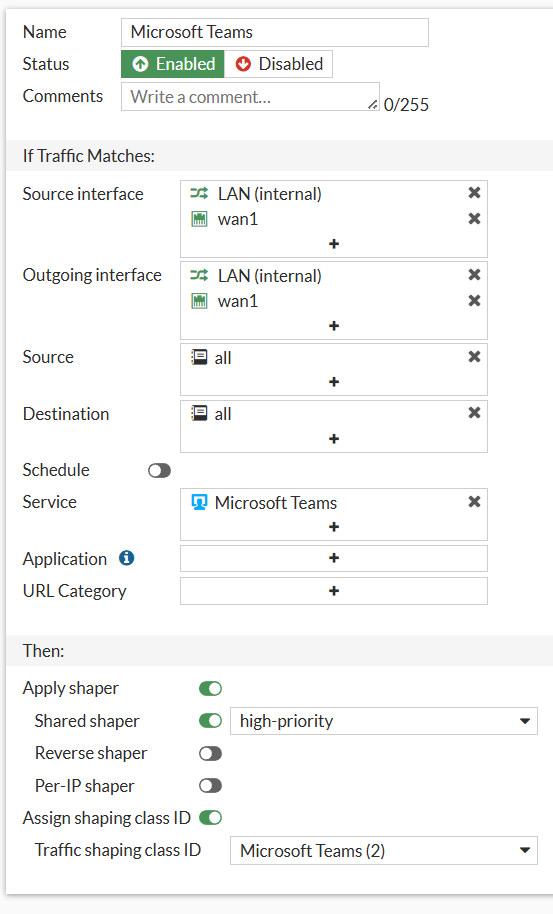
Create a Traffic Shaping Policy for this Service. Assign your necessary Interfaces and the created Service

[![image.png](https://kb.oliver-karger.de/uploads/images/gallery/2025-07/scaled-1680-/UFDimage.png)](https://kb.oliver-karger.de/uploads/images/gallery/2025-07/UFDimage.png)