Windows
Error Diagnosis
Enable and Locate Memory Dumps
Enable Memory Dumps
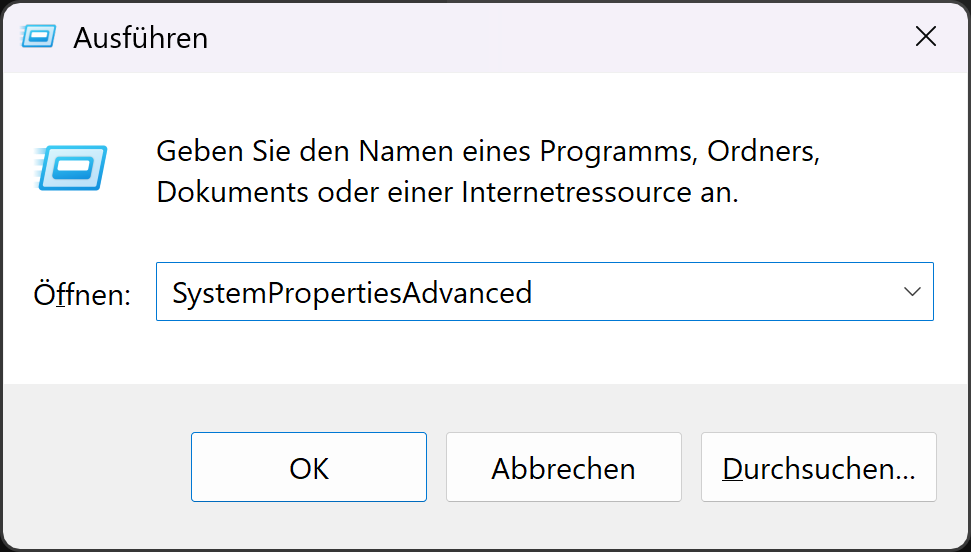
Press Windows-Key + R and enter SystemPropertiesAdvanced
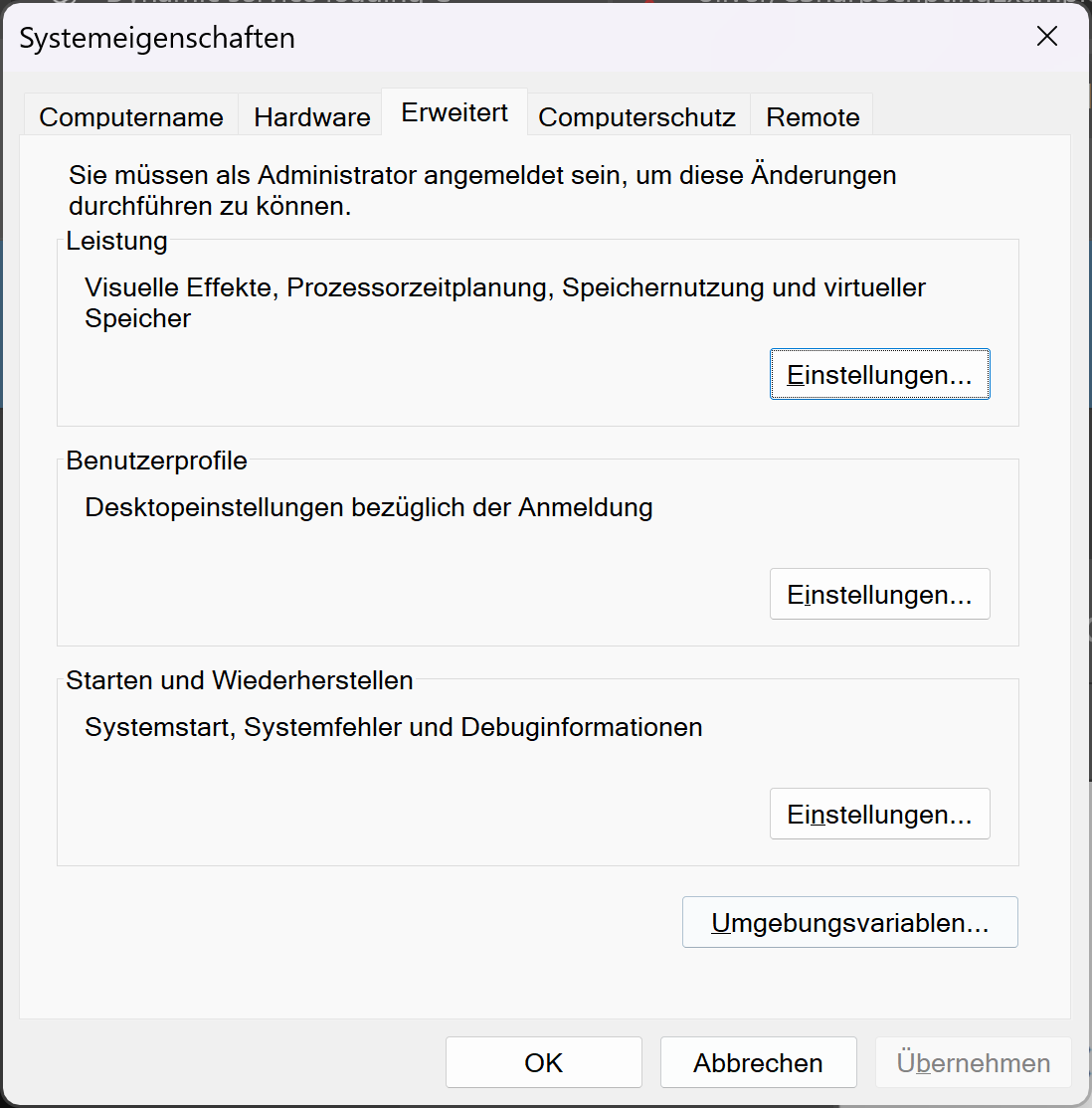
go to Tab Advanced and click on Settings in the Section Startup and Recovery
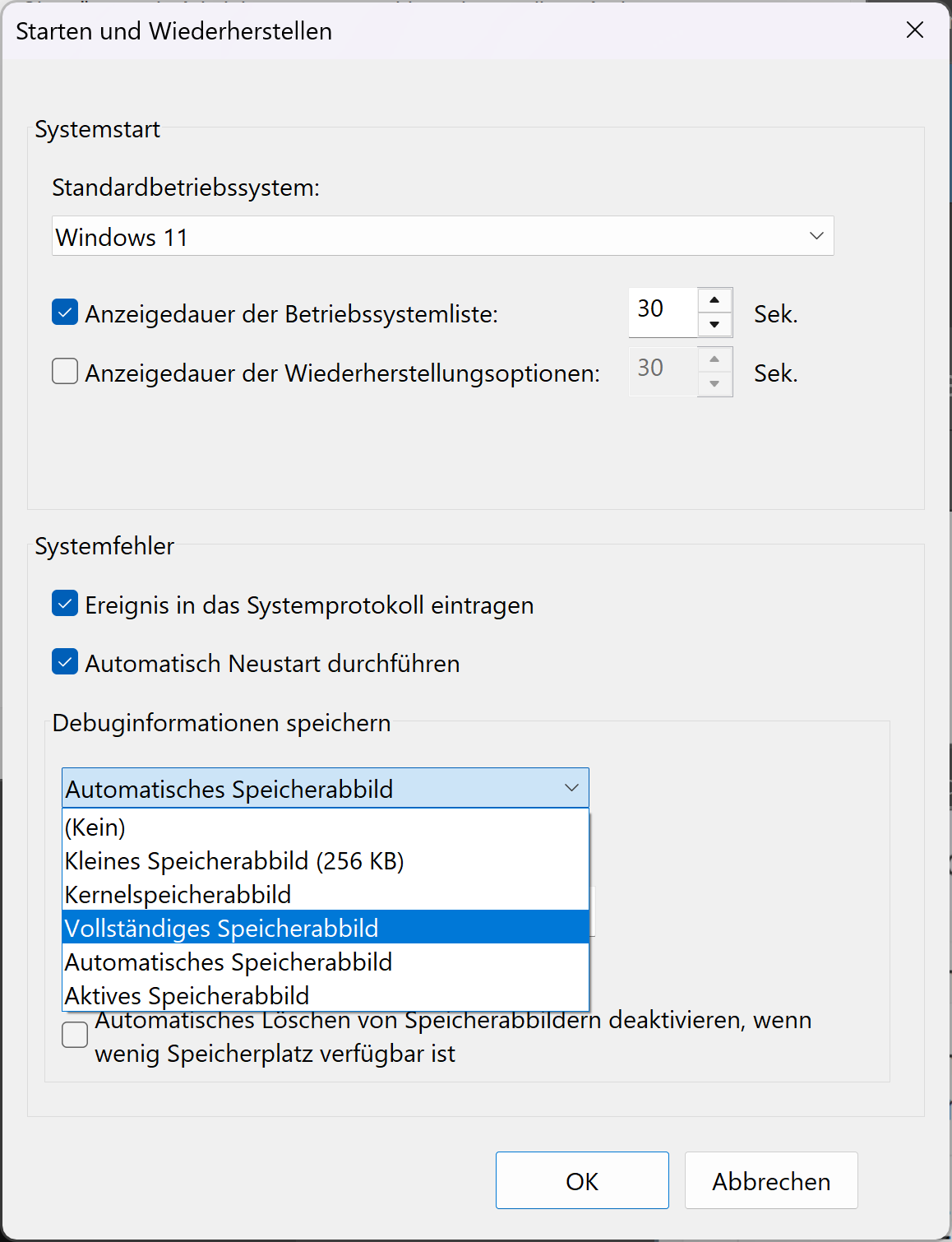
- At the Dropdown in System Errors, select Complete Memory Dump
Locate Memory Dumps
The Path is visible in the last Screenshot as Location on the Windows Disk.
As per Default, it is %SystemRoot%\MEMORY.DMP or C:\Windows\MEMORY.DMP
System File Integrity Check
The System File Integrity Check (SFC) in Windows is used to validate (and repair) System Files.
Usage
SFC [/SCANNOW] [/VERIFYONLY] [/SCANFILE=<Datei>] [/VERIFYFILE=<Datei>]
    [/OFFWINDIR=<Windows-Offlineverzeichnis> /OFFBOOTDIR=<Offlinestartverzeichnis> [/OFFLOGFILE=<Protokolldateipfad>]]

/SCANNOW        Überprüft die Integrität aller geschützten Systemdateien und
                repariert ggf. problematische Dateien.
/VERIFYONLY     Überprüft die Integrität aller geschützten Systemdateien.
                Es erfolgt keine Reparatur.
/SCANFILE       Überprüft die Integrität der angegebenen Datei und repariert ggf. die Datei, wenn Probleme gefunden werden.
                Geben Sie den vollständigen Pfad zur <Datei> an.
/VERIFYFILE     Überprüft die Integrität der Datei mit dem vollständigen Pfad zur <Datei>.  Es erfolgt
                keine Reparatur.
/OFFBOOTDIR     Gibt den Speicherort des Offlinestartverzeichnisses für Offlinereparaturen an.
/OFFWINDIR      Gibt den Speicherort des Windows-Offlineverzeichnisses für Offlinereparaturen an.
/OFFLOGFILE     Durch Angabe eines Protokolldateipfads kann bei Offlinereparaturen optional die Protokollierung aktiviert werden.

Beispiel:

        sfc /SCANNOW
        sfc /VERIFYFILE=c:\windows\system32\kernel32.dll
        sfc /SCANFILE=d:\windows\system32\kernel32.dll /OFFBOOTDIR=d:\ /OFFWINDIR=d:\windows
        sfc /SCANFILE=d:\windows\system32\kernel32.dll /OFFBOOTDIR=d:\ /OFFWINDIR=d:\windows /OFFLOGFILE=c:\log.txt
sfc /VERIFYONLY- Use
sfc /verifyonlyto only Verify Files and not attempt to repair them. This is generally preferred to be the first stop when suspecting damaged/corrupted system files as there is no possibility in harming the system. - use
sfc /scannowto both Verify and attempt Repair. This is a destructive Operation so it is suggested to run this only when knowing that this can very well brick the system. While i had only a few occurences where this happened, but nevertheless.
There are also the Options to write a log File using /OFFLOGFILE. The Options /OFFBOOTDIR and /OFFWINDIR are used when a System repair is wanted but Network is not available. These work as offline sources to repair the Files
BSOD in Log Event Viewer
Windows Blue-Screen-of-Death' (BSOD), generally, produce System Log Events of Type Kernel-Power and Level Critical. Based on them, futher Diagnosis like Memory Dumps or Integrity Checks can be performed.
How to Filter System Event Logs
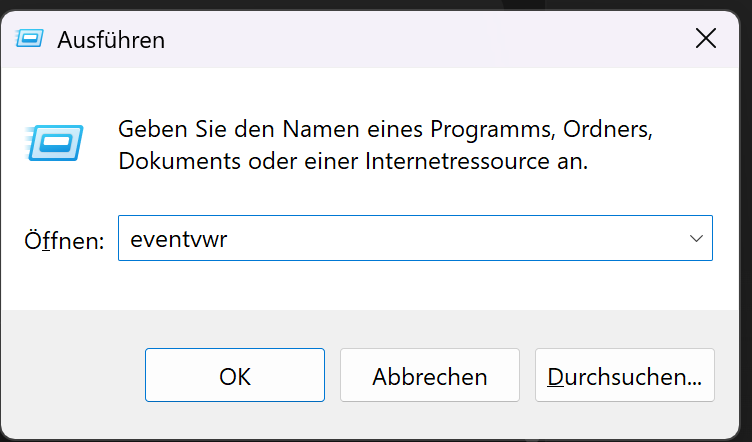
1. Press Windows-Key + R and enter eventvwr
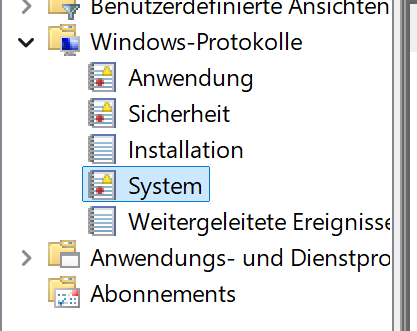
Go to Windows-Protocols and select System
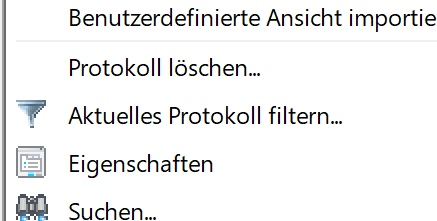
Click on Filter current Protocol
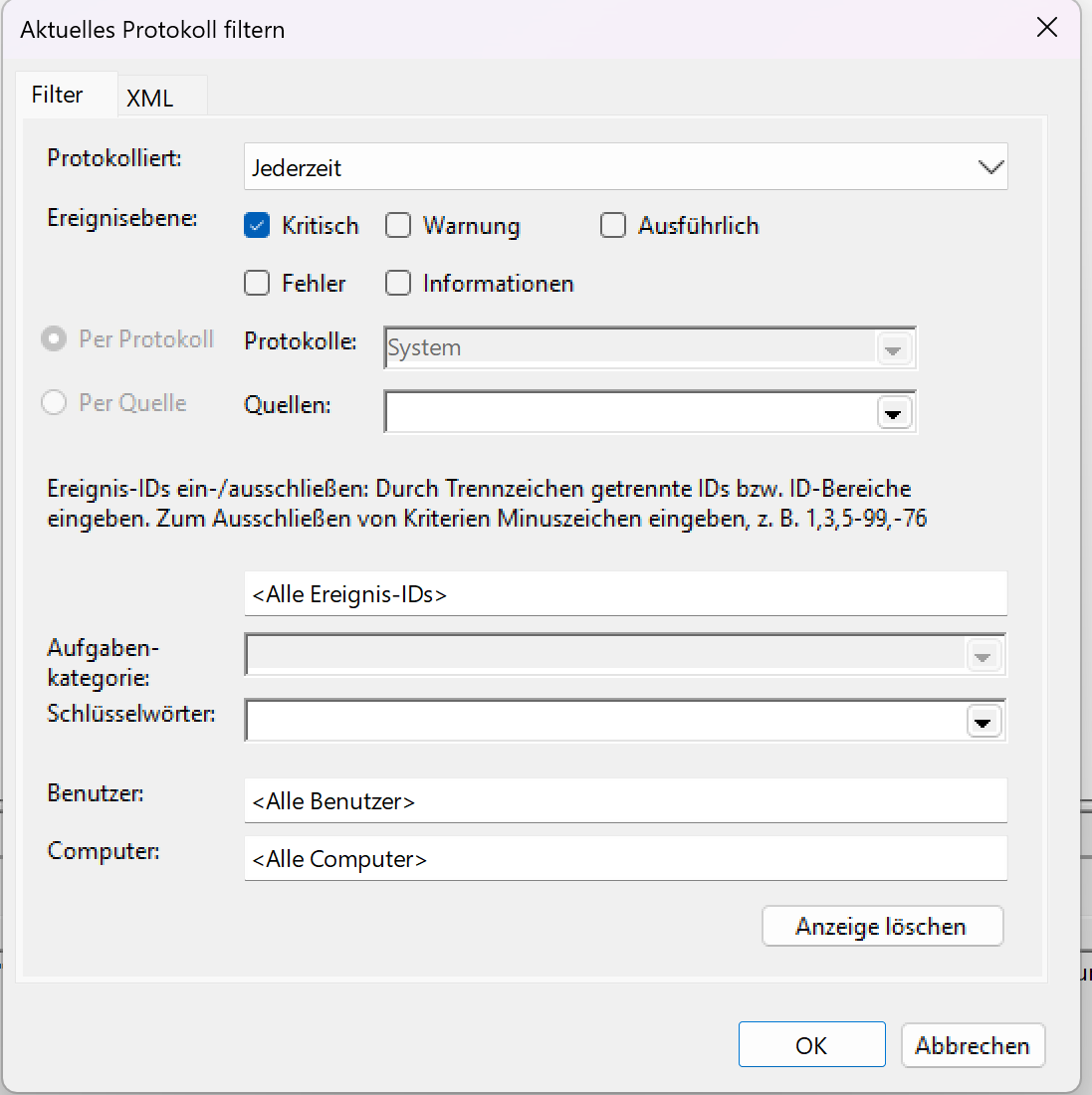
Select Event Level Critical and set a Timeframe
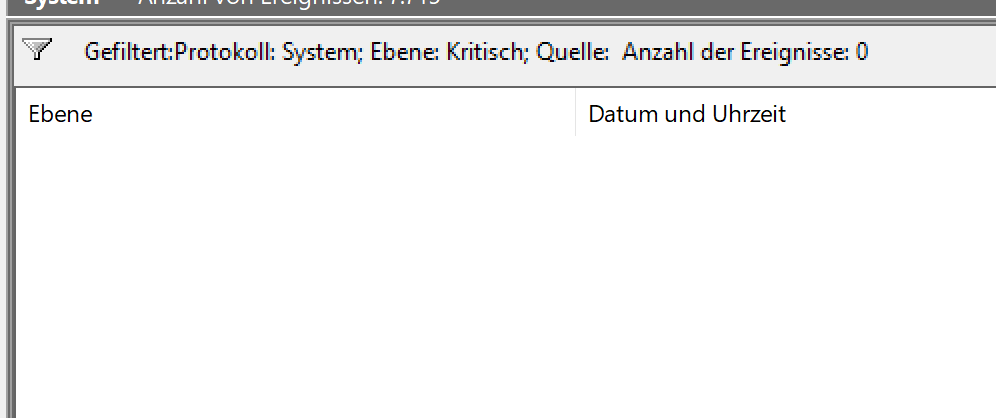
If any BSODs occured, they would be shown here.
Change Lockscreen Language
Issue
Whenever the Windows Language Settings are changed, there is a Chance that the Lock Screen Languages are not updated.
This is common (and expected) behavior as this requires manual intervention.
Solution
- Open Control Panel - Time and Region - Region
- Go to Administrative - Copy Settings
- Check Checkboxes "Lockscreen..." and "New User..."
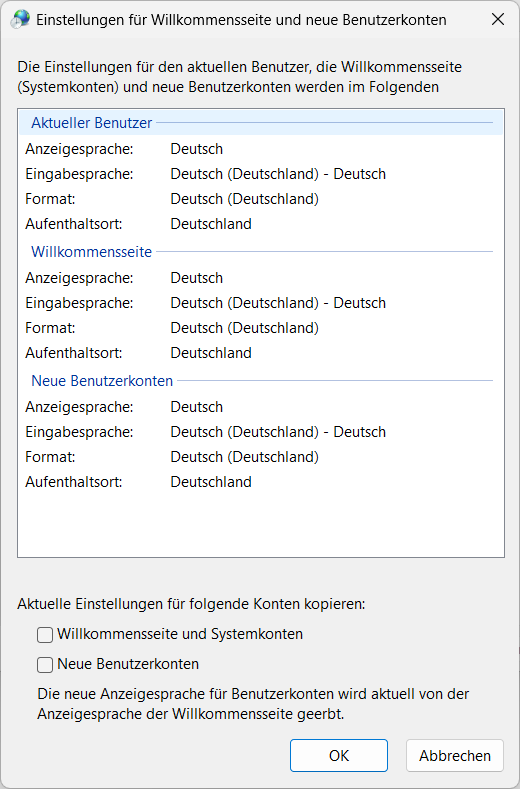
This will copy the current Language Settings to the Lockscreen and set it as Default for new User Accounts