Enable Macros for Network Files
Issue
Office Macros might be disabled when opening Files from Network Shares. These can't be enabled using the Regular Workflow
Solution
- Start
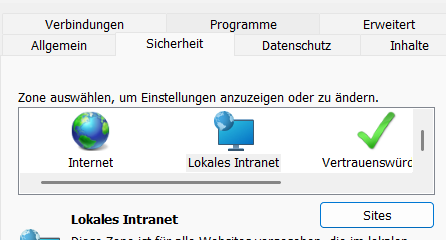
inetcpl.cplfrom Windows Search, Windows Run or CommandPrompt/PowerShell - Go to tab Security
- In the Horizontal Scroll Menu, select Local Intranet
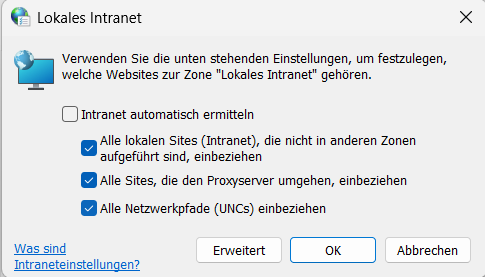
- Click on Button Sites
- Click on Advanced
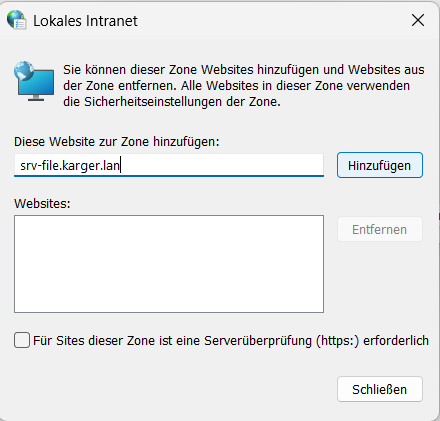
- Type your Server IP/DNS Name/Hostname into the Box and click Add
- Close all Dialogues.
After this, you can now re-enable Macros even with Files from Network Shares.