Performance Optimization
Windows Settings
Game Mode
Windows 11 introduced "Game Mode" that is supposed to optimize Scheduling and Background Processing specifically for Gaming. That is, surprise surprise, not the Case. It actually f's up Performance for most Games.
Therefor, it should be disabled
Settings - Gaming - Game Mode

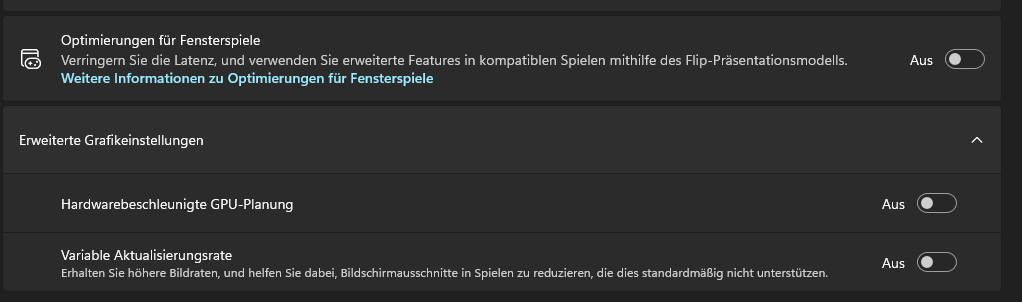
GPU-accelerated Scheduling
This is a Windows 11 Feature that should reduce CPU load by offloading certain Memory Allocation and Task Scheduling Tasks to the GPU. While this does work for a very small percentage of Games - in general, it worsens Performance by introducing Micro-Input-Lag.
It should be fully disabled
Settings - Settings - Display - Graphics
Power Mode
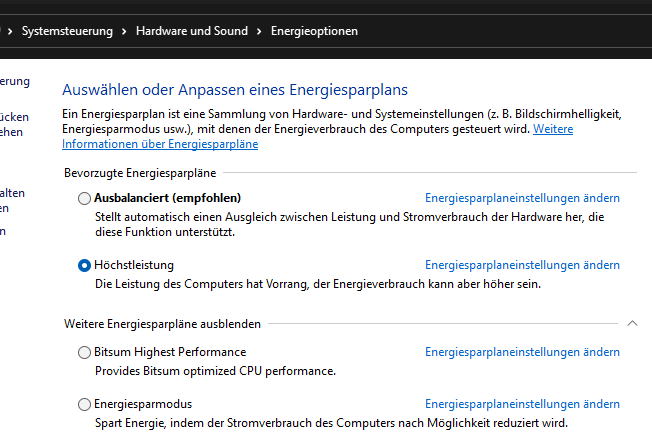
For Gaming, Windows should be set to the "Ultra Performance" Mode
Control-Panel - Hardware and Sound - Energy Options
Nvidia Control Panel Settings
| Function | Setting |
| Max. Frameraate | Disabled |
| Low Latency Mode | Ultra |
| Monitor-Technology | Fixed Refresh Rate |
| Texture Filtering - Anisotropic [...] | Disabled |
| Texture Filtering - Negative LOD Bias | Allowed |
| Texture Filtering - Quality | High Performance |
| Texture Filtering - Trilinear Optimization | Enabled |
| Thread Optimization | Enabled |
Game Settings
[Display]
Mode=Fullscreen
FullscreenMode=Fullscreen
FullscreenRefresh=0
FullscreenWidth=3840
FullscreenHeight=2160
WindowedWidth=3840
WindowedHeight=2160
Maximized=0
RenderQuality=1.000000

[Rendering]
OverallQuality=-1
GraphicsQuality=3
AAQuality=-1
SSLRQuality=0
FSRQuality=-1
FSRSharpness=0.000000
DLSSQuality=-1
DLSSSharpness=0.000000
Tessellation=0
WaterQuality=0
UnderwaterGodRaysQuality=1
TextureQuality=0
ShadowQuality=0
LightingQuality=2
EffectsQuality=1
TerrainQuality=1
FloraQuality=4
ColorBlindFilterType=0
ColorBlindFilterAmount=1.000000
ColorBlindFilterStrength=1.000000
ModelQuality=1
RenderDistance=300.000000
Gamma=0.750000
VerticalFOV=100
ParticleLOD=5
FogShadowsEnable=0
MotionBlur=0
VSync=0
AO=0
MaximumFPS=200
UseLod0a=0
BloomEnabled=0
InfantryRenderDistance=300.000000
GroundVehicleRenderDistance=1000.000000
AirVehicleRenderDistance=2500.000000
UseGlobalRenderDistance=0
UseAspectFOV=1
Smoothing=0
SmoothingMaxFramerate=0
ParticleDistanceScale=0.650000
RTSS
RivaTuner Statistics Server can be used to analyze Bottlenecks and select the correct Settings.
Link to this Overlay: https://git.oliver-karger.de/oliver/RTSS
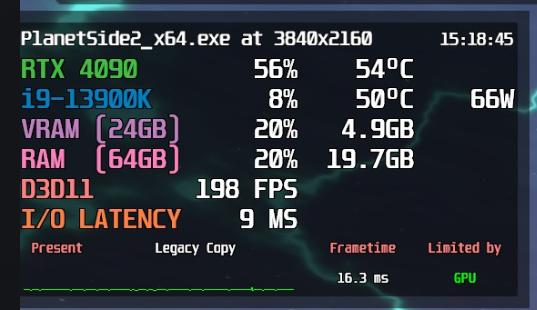
Important Information:
- I/O Latency should generally be below 10ms
- Present should always be Legacy Copy for the least amount of Input Lag
- Limited by should generally be CPU for most People (ignore the Value in the Screenshot please)