Performance Optimizations
AV Exclusions
Universal
| Path | Wildcard | Description |
|
%PROGRAMFILES%\WindowsApps\MSTeams*\ms-teams.exe |
Teams Version | Main Teams Client |
|
%PROGRAMFILES%\WindowsApps\MSTeams*\msteams_autostarter.exe |
Teams Version | Teams Autostart for User Logon |
|
%PROGRAMFILES%\WindowsApps\MSTeams*\ms-teamsupdate.exe |
Teams Version | Teams Updater |
|
%PROGRAMFILES%\Microsoft\EdgeWebView\Application\*\msedgewebview2.exe |
EdgeWebView Version | WebView (Teams Renderer) |
Disable GPU Rendering
Depends on System. Might reduce Performance!
Edit File: %APPDATA%\Microsoft\Teams\desktop-config.json
Search for disableGPU and set to true
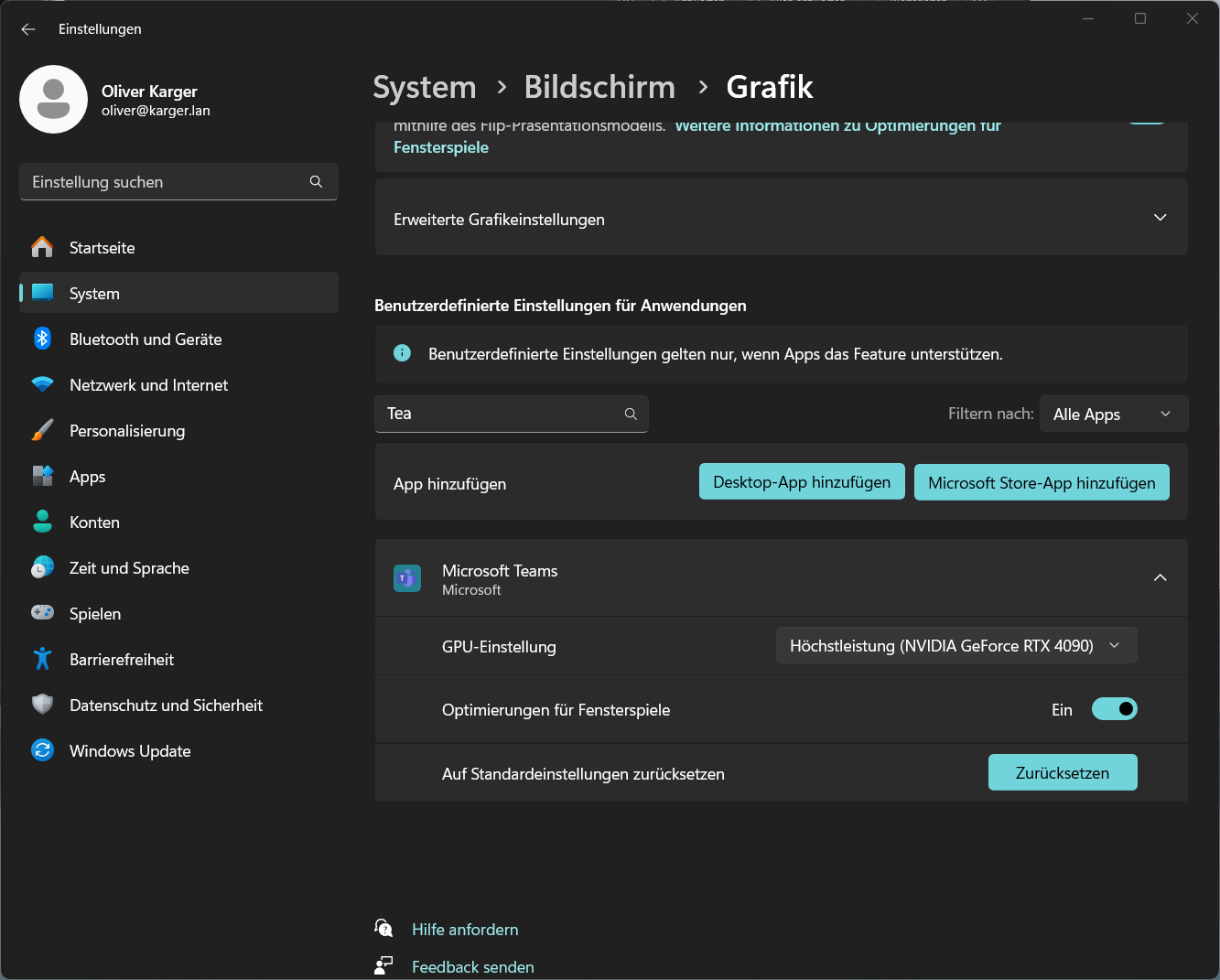
Force GPU Rendering
Depends on System. Might reduce Performance!
Windows 11
- Open Settings (Windows-Key + i)
- Go to System - Display - Graphics
- Either search for Teams, or click Add MIcrosoft Store App and select Microsoft Teams
- Select GPU Setting "Max Performance (<Your-GPU>)
Enable HMSS
High Motion Screen Sharing increases the Framerate of the Teams Screen Sharing System and the Application reduce the Lag introduced by itself.
Press: CLTR+ALT+SHIFT+T
This can only be done while in a Meeting.
This Acts as a Toggle. Once to activate, another to deactivate